
Assets overview and categories
Open /dashboard/assets/categoriesAssets are the ingredients your customers design with. If a colour, font, pattern or logo is not in one of these libraries, nobody can choose it. That is the point: you decide the menu, and everything ordered from it is something you can actually produce.
Open Assets in the sidebar. You land on a page with six tabs across the top. Each tab is one library.
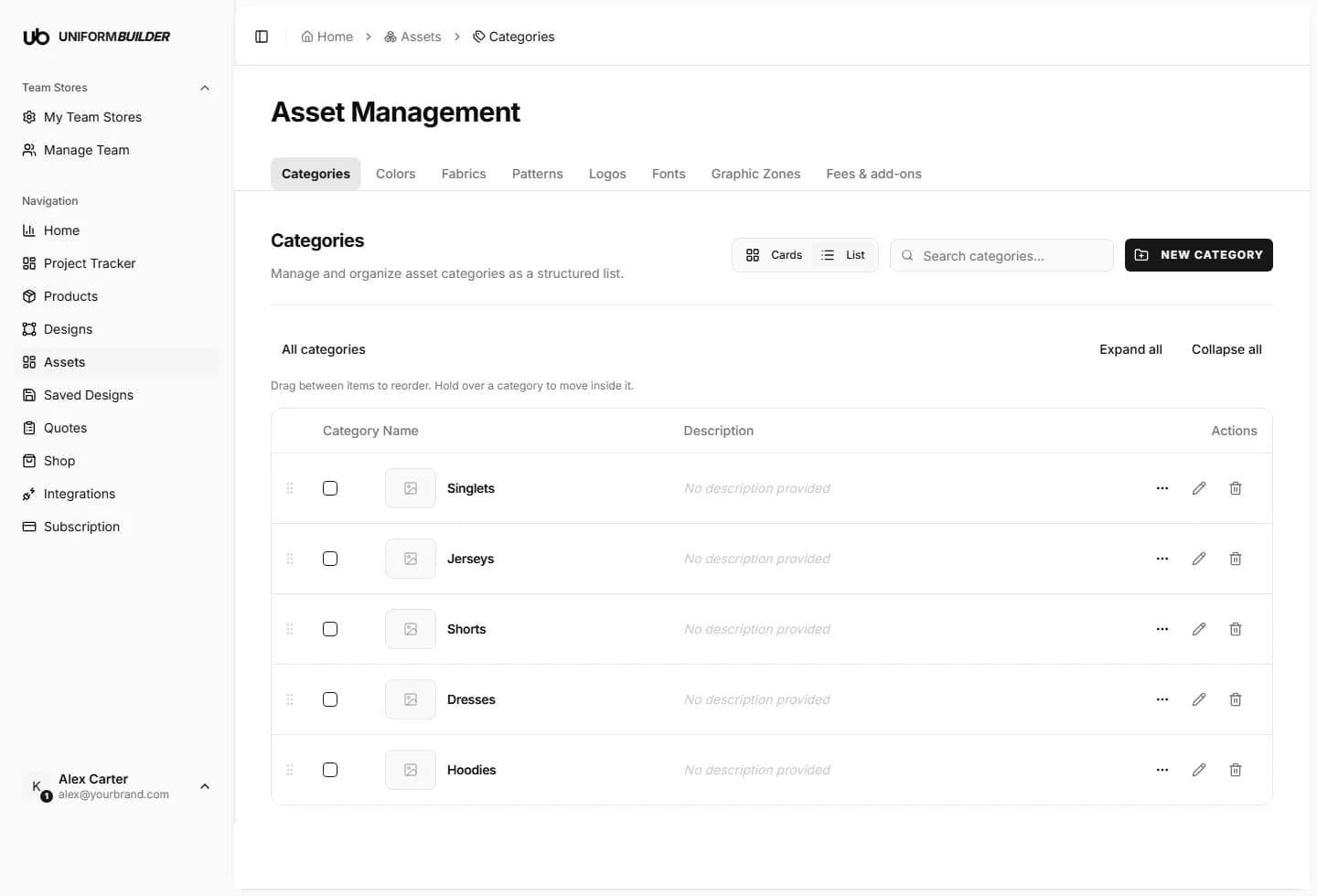
The libraries
| Field | What it does |
|---|---|
| Categories | Groups of products, like "Jerseys" or "Shorts". Explained further down this page. |
| Colors | The colours a customer can put on a garment. See Colours. |
| Fabrics | How a fabric catches the light: matte, shiny, mesh. See Fabrics. |
| Patterns | Repeating artwork like camo or stripes. See Patterns. |
| Logos | Brand marks customers can place on a product. See Logos. |
| Fonts | Typefaces for names, numbers and slogans. See Fonts. |
| Graphic Zones | Where customers may put text and artwork on each product, and what they may change. See Graphic Zones. |
| Fees & add-ons | Extra charges for what a design uses, and optional extras like rush. See Fees & add-ons. |
Controls that are the same on every tab
Once you learn one tab you know them all. Every library page has the same four controls.
- Grid shows each item as a picture. Best when you are choosing something by eye.
- Table shows the same items as rows. Best when you are checking codes or deleting several things.
- The search box filters the list as you type. Use it once a library gets past one screenful.
- The dark button on the right adds something new. Its wording changes per tab: Add Color, New Fabric, Upload Pattern, Upload Brand Logo, Add Font.
On each item you will find three small icons: an eye to preview it, a pencil to edit it, and a bin to delete it.
Assign to: the one rule to learn
Nearly every time you add an asset, the form asks Assign to. This decides which products the asset shows up on. It is the most important choice on the form, and the one people get wrong first.
| Field | What it does |
|---|---|
| All products | The asset appears on every product in this store. Use it for your core brand colours and your one or two main fonts. |
| By category | The asset appears on every product in the category you pick, and nowhere else. Use it when something only makes sense for one garment type, for example a mesh fabric on jerseys. |
| Specific products | The asset appears only on the products you tick. Use it for a one-off club colourway or a licensed pattern. |
When in doubt, choose the narrowest one
Widening an asset later takes two clicks. Explaining to a customer why the colour they picked cannot actually be produced on that fabric takes a phone call.
Two filters, not one
The product also has its own colour setting, and a design can restrict its own colours. A colour has to be allowed by all of them before a customer sees it. See Products.
Categories
A category is a group of products: Jerseys, Shorts, Hoodies, Dresses. Categories do two jobs at once.
- They organise your public storefront, so customers can browse by garment type instead of scrolling one long list.
- They let you assign an asset to a whole garment type in one move, instead of ticking twenty products by hand.
Creating a category, step by step
- 1
In the sidebar, click Assets. You arrive on the Categories tab.
- 2
Click the dark New Category button in the top right.
If the library is empty you can also click Create Category in the middle of the page. Both open the same dialog.
- 3
Type the category name.
Use the word a customer would use. "Jerseys" is better than "TOP-01". You can rename it later.
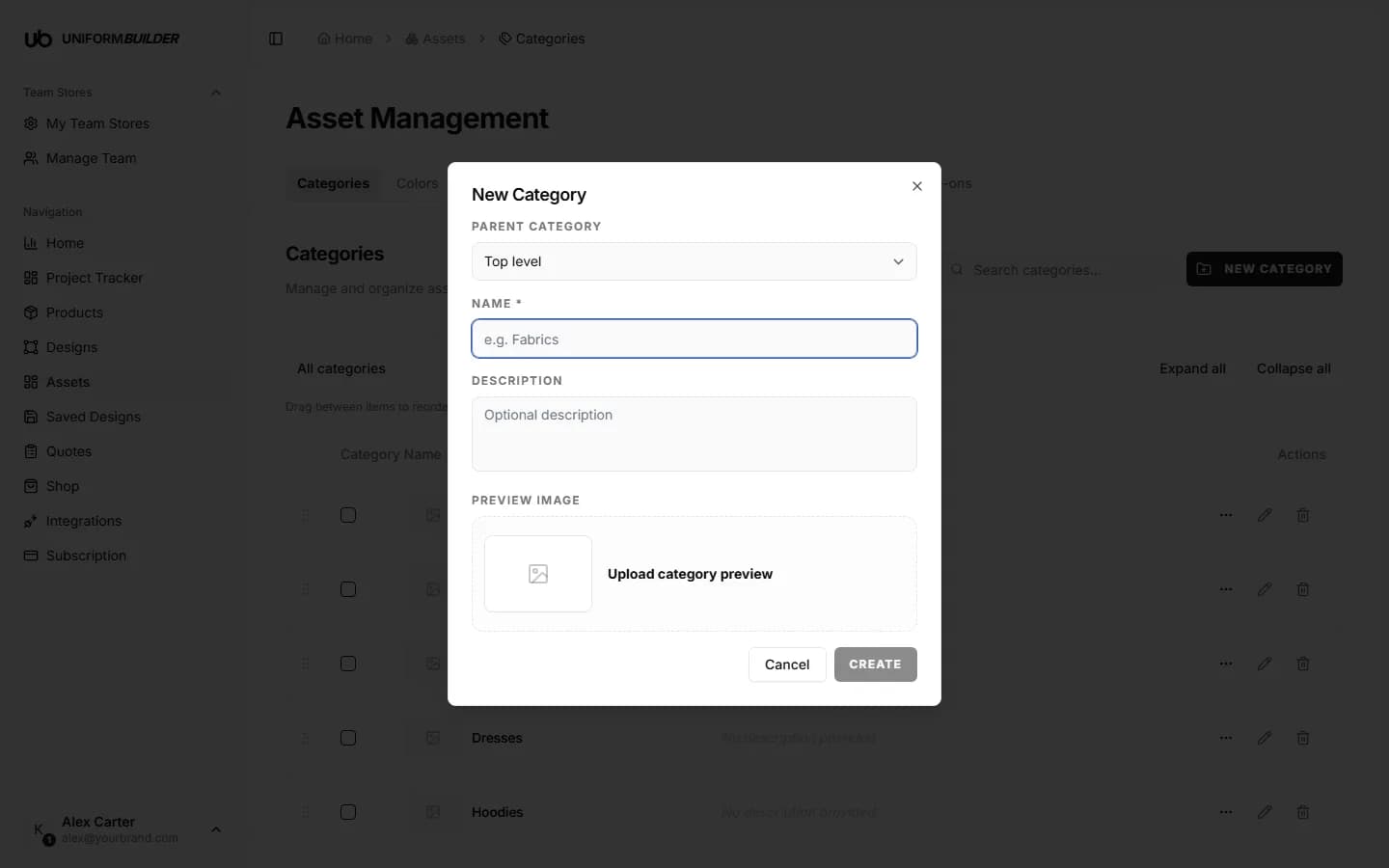
The dialog is deliberately small: a category is only a name. - 4
Click Create. The category appears in the list straight away.
- 5
Now put products into it.
A category does nothing until products belong to it. Open a product from Products, find the Category dropdown on the Overview tab, choose your new category, and press Save. Repeat for each product.
Do this before you add many products
Creating four categories first takes two minutes. Re-filing fifty products afterwards takes an afternoon.
Deleting a category
Deleting a category does not delete its products, but any asset you had scoped "by category" to it loses its target and stops appearing. Check your colours and fabrics after deleting one.
How many categories should I create?
One per garment type you sell, usually between three and eight. If you cannot tell two categories apart in one word, they should probably be one category.
Can a product be in two categories?
A product has one category. If you find yourself wanting two, that is usually a sign the categories are too specific.
Do customers see the category names?
Yes, on your public storefront. Write them for customers, not for your stock system.