
Fabrics
Open /dashboard/assets/materialsA fabric is what makes a colour look like cloth instead of paint. It decides how light behaves on the garment: matte or shiny, smooth or woven, solid or full of holes like mesh. Two jerseys in the same colour can look completely different depending on the fabric.
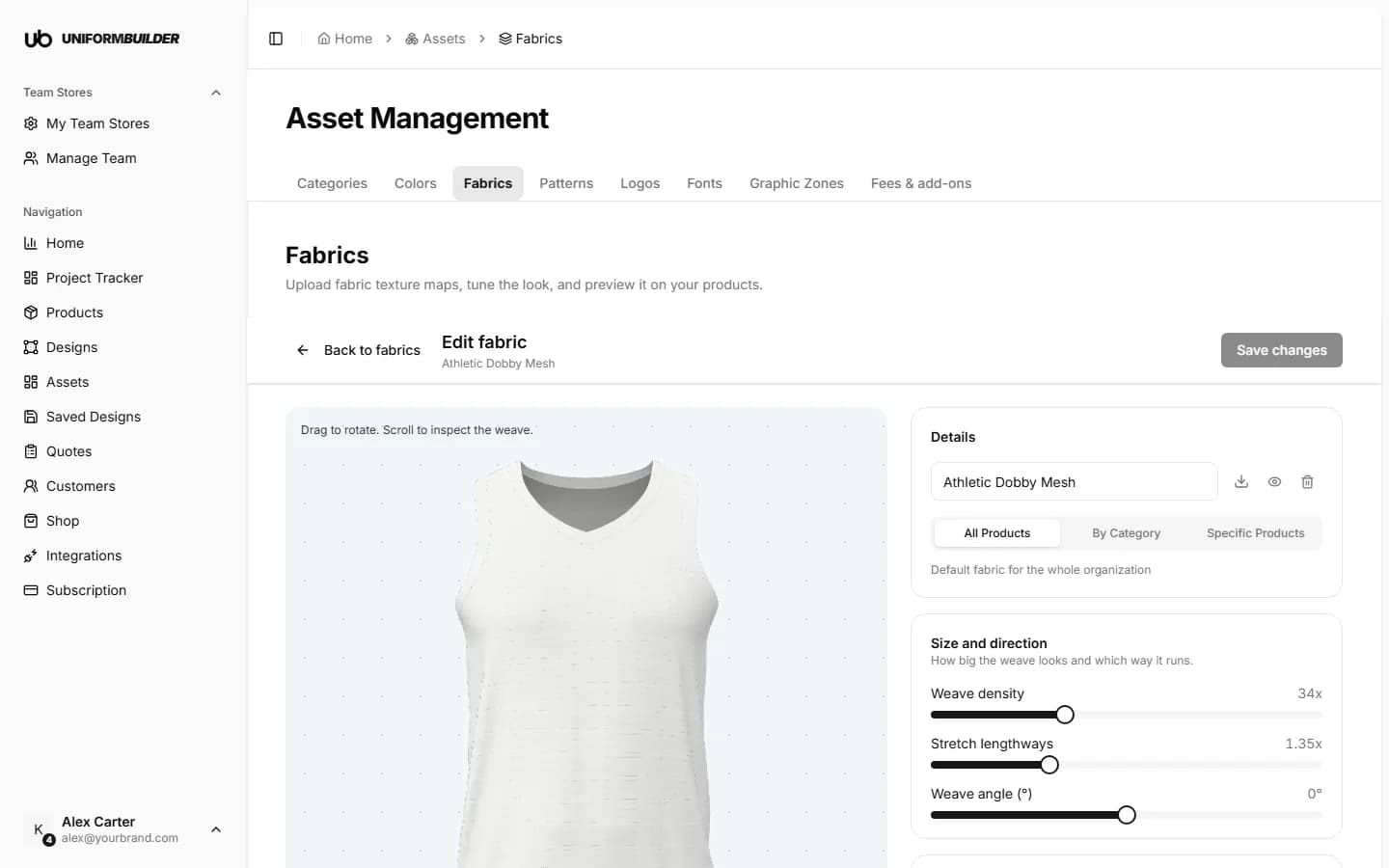
Open it from Assets in the sidebar, then Fabrics. The page lists your fabrics; clicking one opens it full screen, with the settings on one side and a live 3D garment on the other.
The fabric library
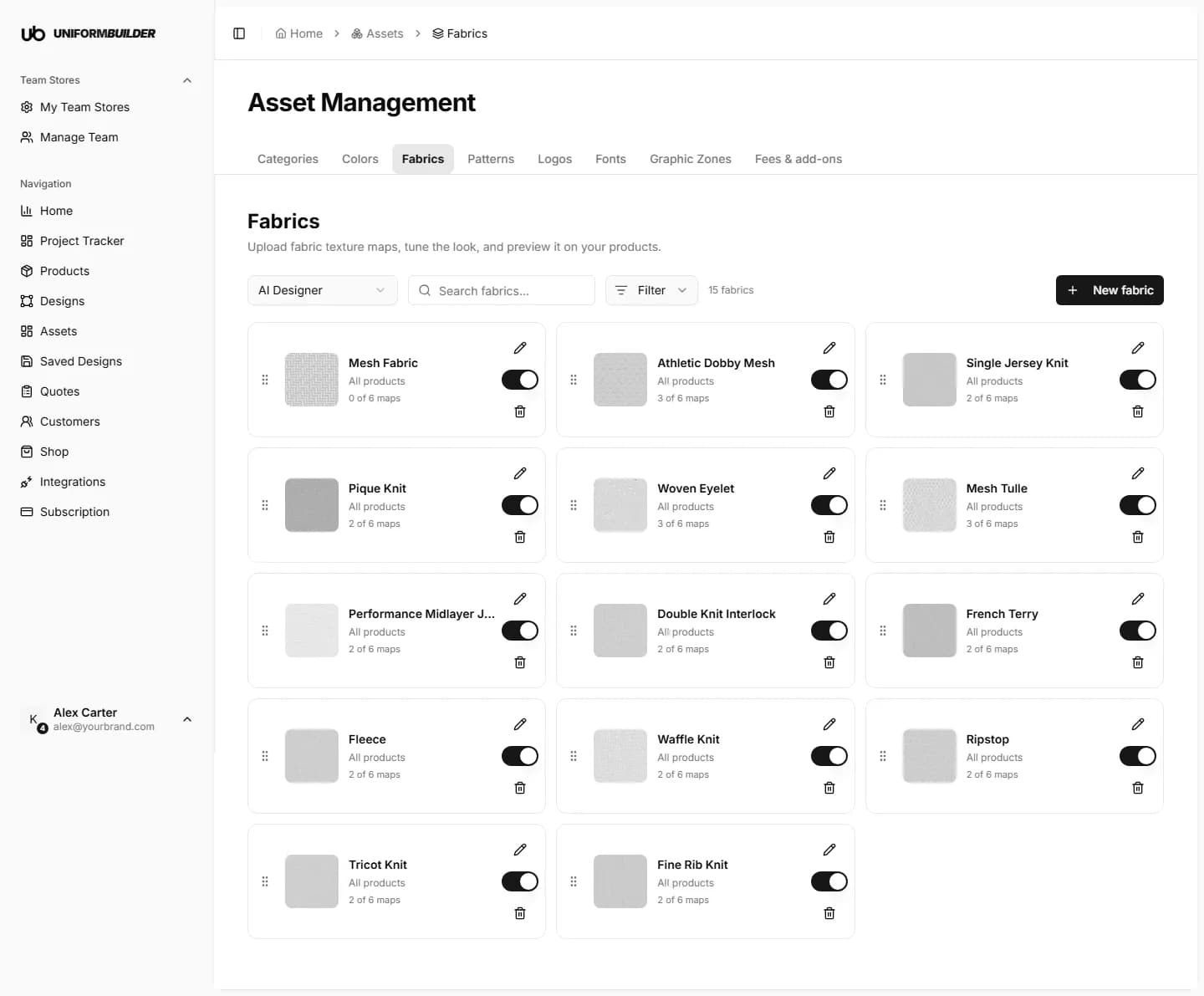
- Each fabric shows its preview swatch, its name and where it applies: All products, a number of categories, or a number of products.
- Drag a fabric by its handle to change the order. Customers see fabrics in this order.
- The switch on a card hides a fabric from the designer without deleting it. Hidden fabrics are marked Hidden from the designer.
- The bin deletes a fabric. Designs already saved keep the look they were saved with.
Note
A fabric in the library always covers the whole garment, inside included. To give one panel of a product a different fabric, for example mesh side panels on a jersey, use the product page. See Product fabrics by panel.
Creating a fabric
- 1
Click New fabric.
If the library is empty, the button in the middle of the page does the same thing.
- 2
Type a name, then click Create fabric.
Name it the way you talk about it in the workshop: "Performance Mesh", "Matte Jersey Knit". Customers may see this name when they choose a fabric.
- 3
Add its images, or pick a Built-in texture.
The next section explains both. A built-in texture is enough to start: Plain weave, Twill, Knit or Mesh.
- 4
Tune the look with the sliders while you watch the 3D garment.
Under the 3D preview, choose one of your products and a garment colour to see the fabric on the real shape.
- 5
Choose where the fabric applies, then click Save changes.
Leaving with unsaved changes asks whether to keep editing or discard them.
The fabric images
A fabric can use up to six images. Each one controls one part of the look, and only the first is really needed. Click a slot to upload, click it again to replace.
The six images
| Field | What it does |
|---|---|
| Colour image | The fabric itself, or its print, with no shadows. A flat, evenly lit photo cropped square works. |
| Texture image | A bump image that makes the weave look raised instead of printed. It usually looks lilac blue: that is normal. |
| Shine image | Black and white. Dark areas shine, light areas stay matte. This is what separates satin from cotton. |
| Metallic image | For metallic threads only. Most fabrics leave it empty. |
| Shadow image | Darkens the gaps between threads so a heavy knit looks deeper. Optional and subtle. |
| Holes image | Black and white. White stays as fabric, dark becomes a hole. Use it for mesh, eyelet and lace. |
No images yet?
Pick a Built-in texture (Plain weave, Twill, Knit or Mesh). It gives the sliders something to work with. An uploaded texture image always wins over the built-in one.
Images must repeat cleanly
The images repeat across the garment. If the left edge does not line up with the right edge, a grid shows on the 3D preview. Ask your supplier for tileable scans, or use a texture library that sells them.
Tuning the look
The settings are grouped by what they change. Every change shows on the 3D garment at once; nothing is saved until you click Save changes, and Reset appearance puts the sliders back.
| Field | What it does |
|---|---|
| Size and direction | Weave density makes the pattern finer or coarser, Weave angle turns it, Stretch lengthways pulls it along the garment. |
| Texture | Bumpiness sets how raised the weave looks; Fold depth how deep the garment folds read. |
| Shine | Matte goes from glossy satin to flat cotton; Highlight strength and Reflections fine tune it. Silky streaks adds the stretched highlights of satin. |
| Soft glow | The gentle glow along folds that jersey and velvet have: Glow, Glow spread and Glow brightness. |
| Shadows in the weave | Shadow strength darkens the gaps between threads. |
| Holes | Hole size and Hole transparency for mesh. See-through from afar keeps a mesh looking open when the garment is small on screen, and Inside brightness sets how light the inside looks through the holes. |
| Metallic and coating | Metallic for metallic threads, Glossy coating and Coating softness for laminated or coated fabrics. |
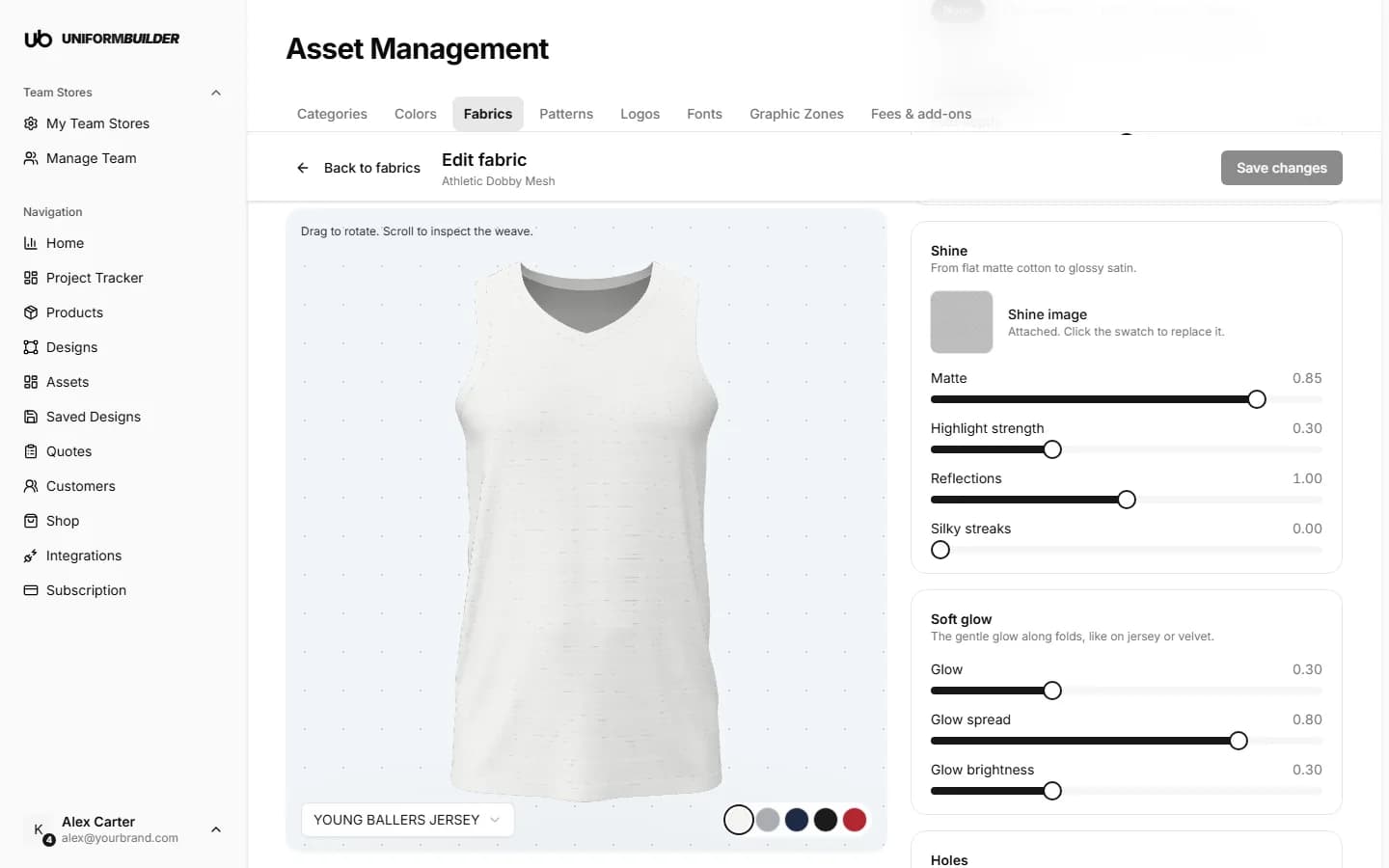
The Preview swatch is what customers see in the fabric picker. It is made from the texture automatically each time the texture changes. Click it to use your own image instead; Use automatic preview switches back.
Where a fabric applies
| Field | What it does |
|---|---|
| All Products | The default fabric for the whole organization. |
| By Category | Products in the categories you pick use it. |
| Specific Products | Only the products you pick use it. |
Charging more for a fabric
A premium fabric can carry its own price. Add a Fabric fee in Fees & add-ons and it is added to every design made in that fabric.
My fabric looks flat and plastic.
Raise Matte in Shine, or add a Shine image that is light grey to near white. With no shine information, everything renders at one default gloss.
The weave looks carved in instead of raised.
Tick Flip bumps inside out. Texture images come in two conventions and this switches between them.
The 3D preview says it is paused.
The browser dropped the graphics context, usually after the computer slept. Click Retry.
Do I need a fabric at all?
No. Products render well without one. Fabrics take a garment from "a coloured shape" to "that looks like our fabric", which matters more the closer your customer looks.