
Integrations overview
Open /dashboard/integrationsThis page answers one question: when a customer finishes a design and presses submit, what happens next? You either email them a confirmation from your own address, or push the order straight into the shop you already run.
Open Integrations in the sidebar. There are four tabs: Quote Flow, Email & SMTP, Store Connections and Payments.
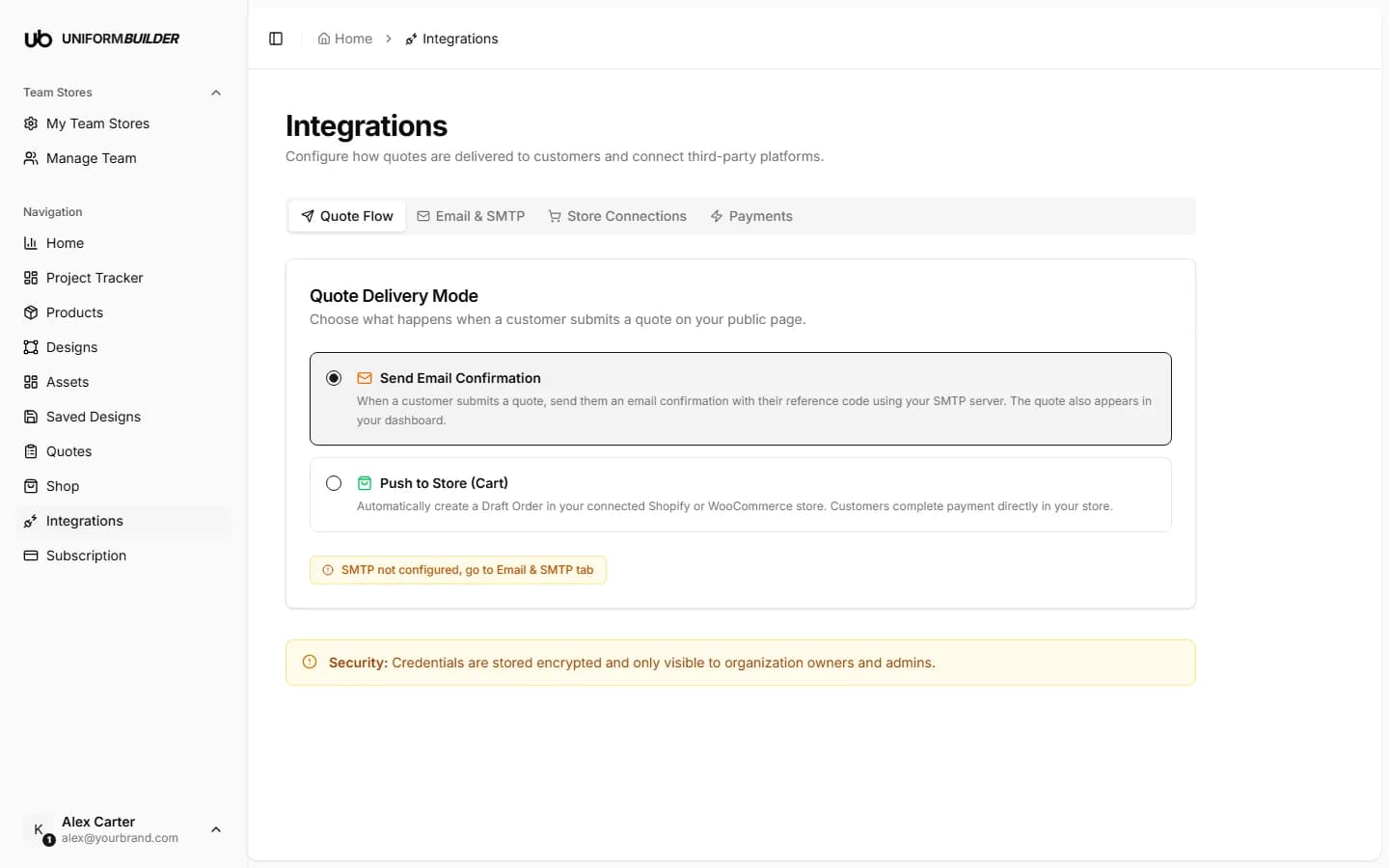
Quote delivery mode
| Field | What it does |
|---|---|
| Send email confirmation | The customer gets an email with their reference code, sent through your own SMTP server. The quote also appears in your Quotes list. This is the normal way to work, and the right choice if you price each job by hand. Set it up in Email and SMTP. |
| Push to store (cart) | A draft order is created in your connected Shopify or WooCommerce store, and the customer completes payment there. Choose this when your shop, not your inbox, is the system of record. |
Note
Email confirmation needs a working SMTP configuration. Until you set one up, the option shows "SMTP not configured" and points you at the Email & SMTP tab.
Choosing a provider
Three providers can take money, and each has its own setup page with step by step instructions.
| Field | What it does |
|---|---|
| Shopify | Pushes accepted quotes into your Shopify store as draft orders, and the customer gets an invoice link to pay. See Connecting Shopify. |
| WooCommerce | Creates orders in your WordPress shop through the WooCommerce REST API. See Connecting WooCommerce. |
| Stripe | Takes payment directly from a quote invoice, with no shop in the middle. See Connecting Stripe. |
Only one of the three can be active
Shopify, WooCommerce and Stripe are mutually exclusive: turning one on turns the others off. That is deliberate, because an order can only be created in one place. Decide where your orders live before you connect anything.
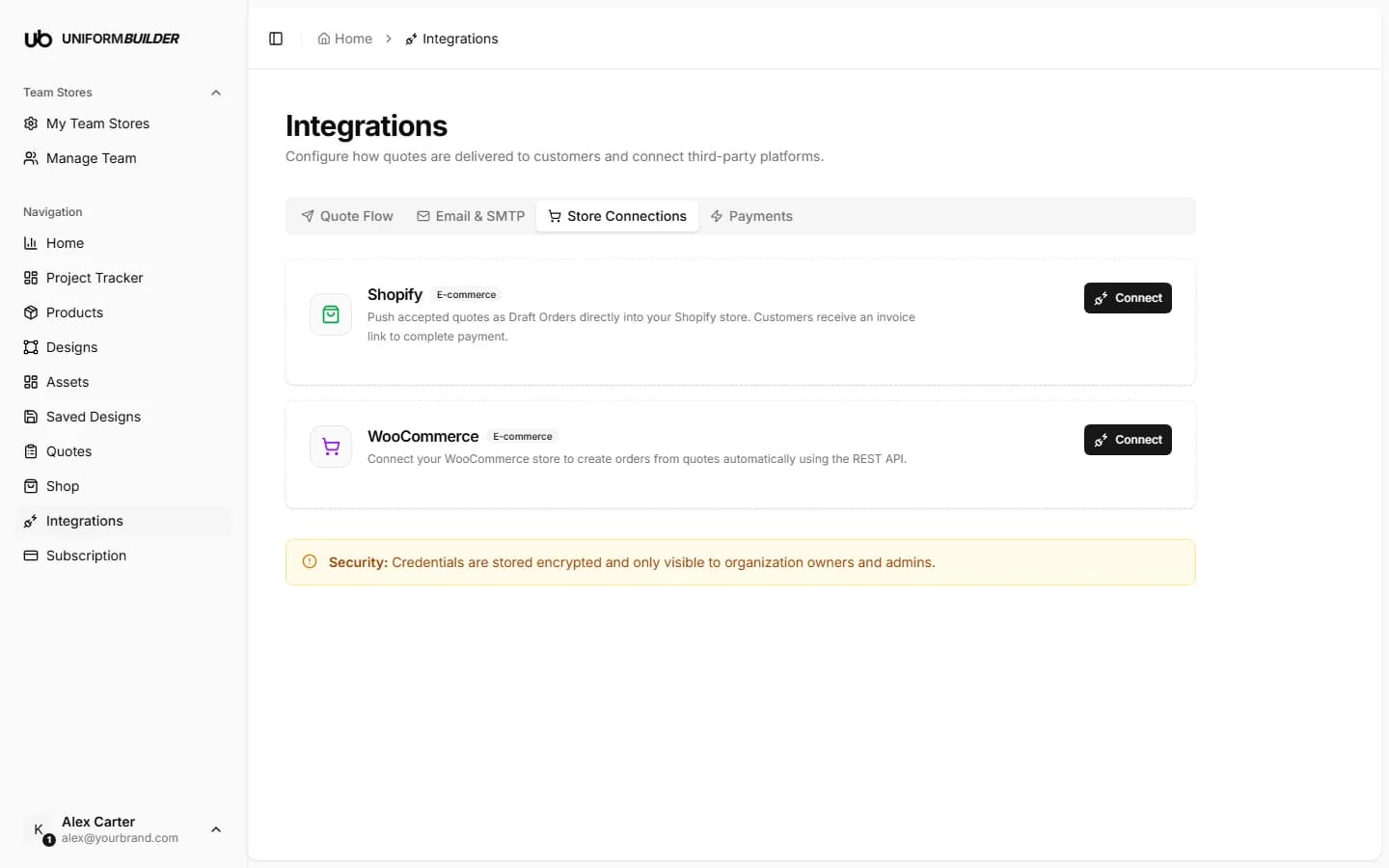
How connecting works
- 1
Open the tab for the provider you want: Store Connections for Shopify and WooCommerce, Payments for Stripe.
- 2
Enter the credentials for that provider.
Each provider page in this manual walks through creating them in that provider dashboard, click by click.
- 3
Save, then test the connection.
A test tells you immediately whether the credentials work and whether any required permission is missing.
- 4
Go back to Quote Flow and switch delivery to Push to store.
Connecting a store does not change delivery on its own. The Quote Flow tab is what decides where a submitted quote goes.
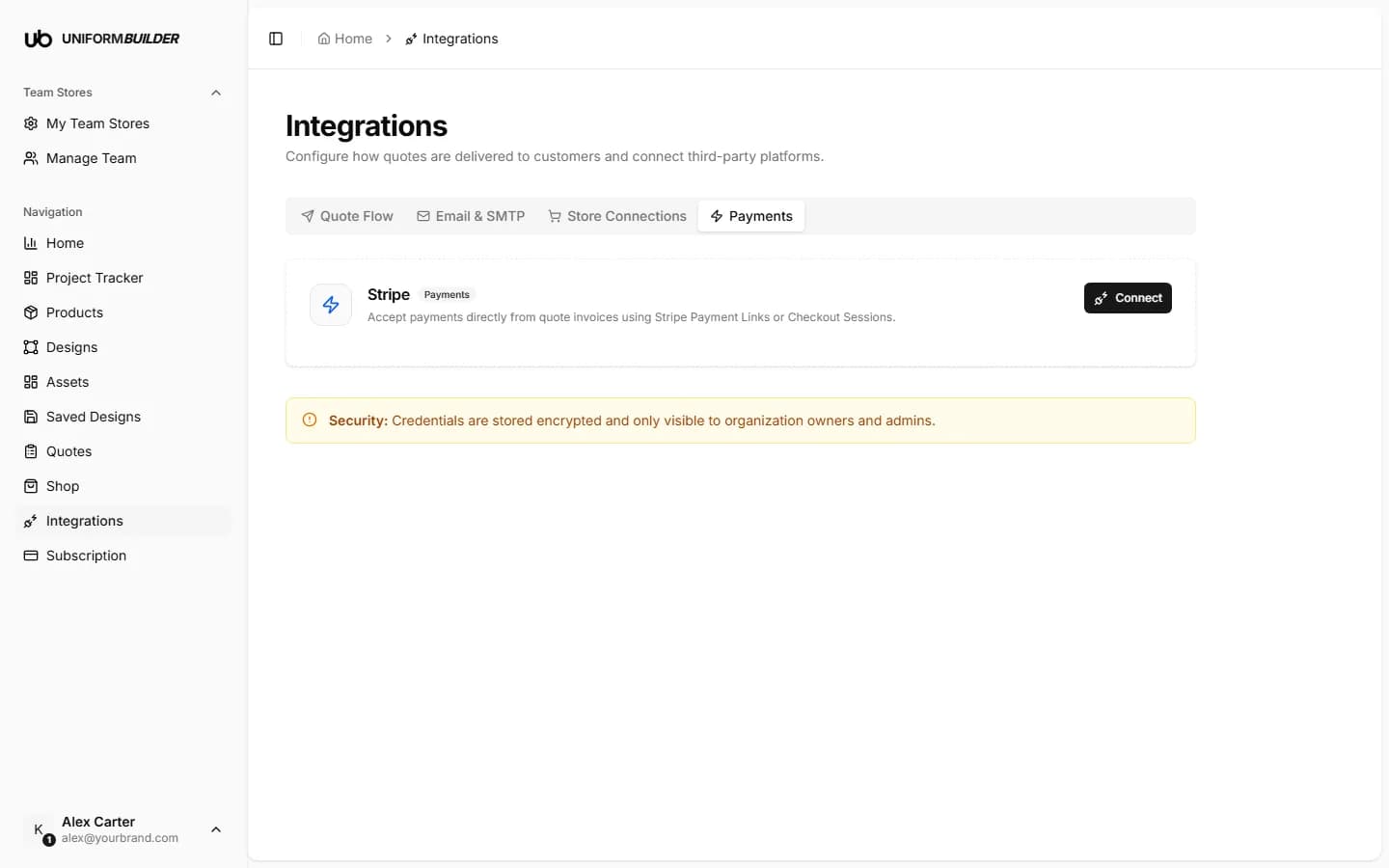
How your credentials are stored
Note
SMTP passwords, API keys and store tokens are stored encrypted and are only visible to organization owners and admins. Members and producers never see them. See Team and permissions.
Treat secret keys like passwords
A secret key, a client secret and a consumer secret each give full access to that account. Never paste one into an email or a chat message, and rotate it in the provider dashboard if you think it has leaked.
Can I use both email confirmation and store push?
The delivery mode is one choice per store. Pick the one that matches where you want the order to live, and use the copy receiver on the Email tab if you also want an internal email trail. See Email and SMTP.
Does the customer still get a reference code?
Yes. Every quote gets a reference code you can search for in Quotes, whichever delivery mode you use.
Do I need any of this to start selling?
No. With no integration at all, quotes still arrive in your dashboard and you reply however you normally would. Integrations remove the manual steps; they are not a prerequisite.