
Product fabrics by panel
Open /dashboard/productsYour fabric library says which fabrics exist. The product page says how a specific garment uses them: one fabric everywhere, or mesh on the side panels and jersey on the body, and which alternatives a customer may switch to.
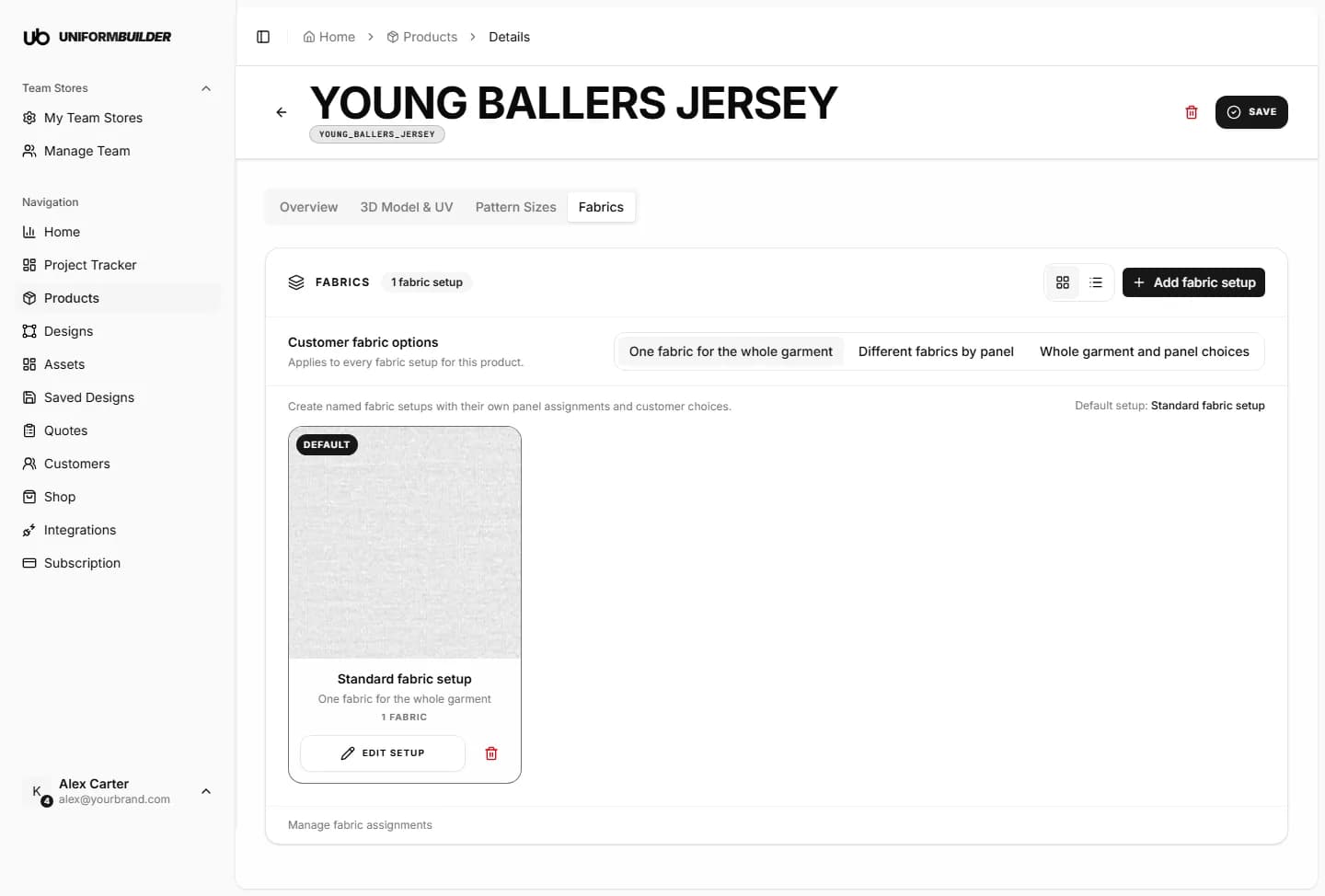
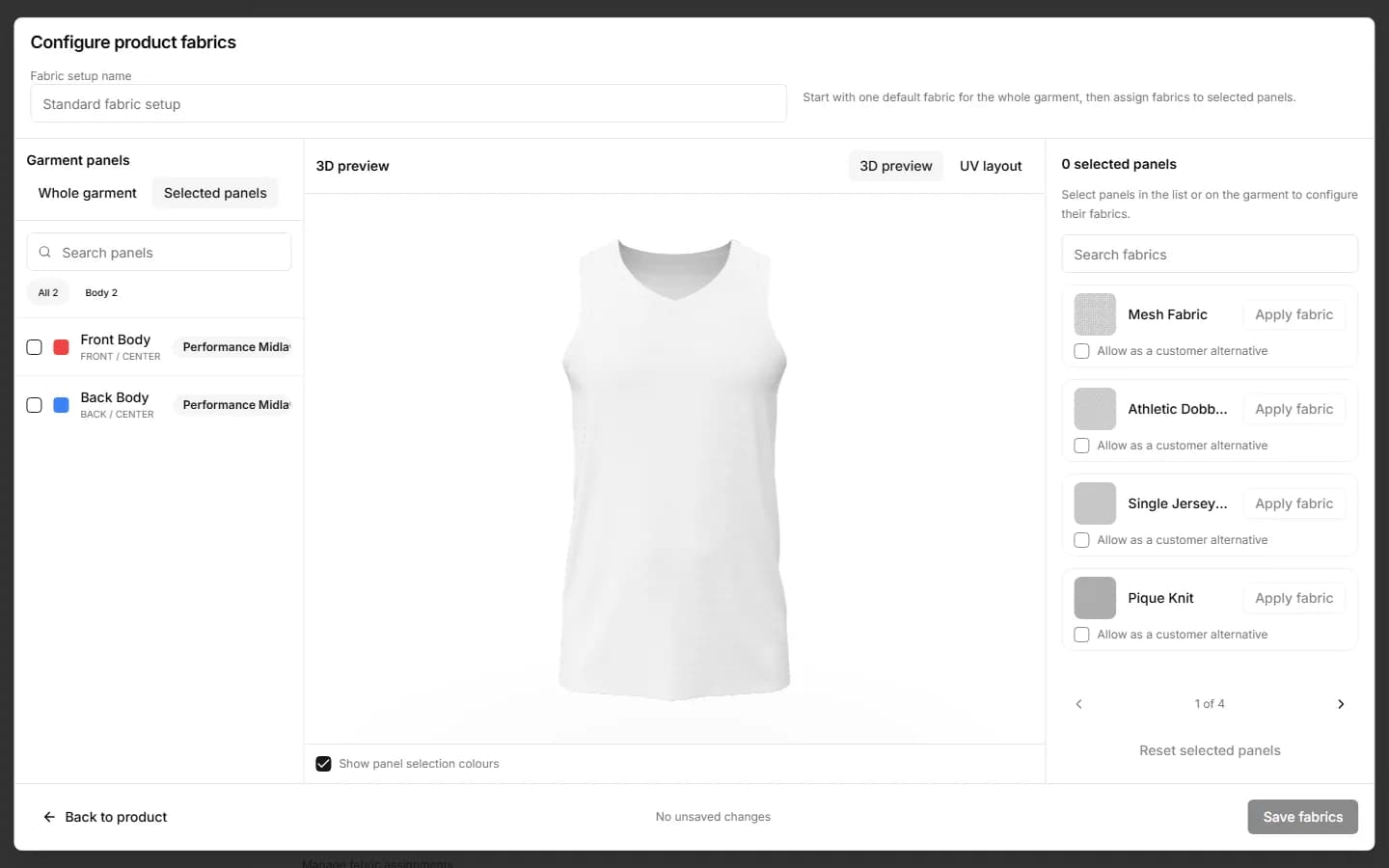
Open a product from Products, then the Fabrics tab. It lists the fabric setups of the product. Click Edit setup on a setup to open Configure product fabrics: the garment in 3D with the fabric controls beside it. Back to product returns to the tab.
Note
Only fabrics that apply to this product are offered here: ones set to All Products, ones for its category, and ones picked for it. If the list is empty, set a fabric to apply to this product in Fabrics first.
What customers can choose
Start with Customer fabric options at the top of the Fabrics tab. It decides what the customizer offers for this product, and applies to every fabric setup.
| Field | What it does |
|---|---|
| One fabric for the whole garment | Customers choose one fabric that covers every panel. |
| Different fabrics by panel | Customers choose from the fabrics you allowed for each configured panel. |
| Whole garment and panel choices | Customers can use one fabric everywhere, or choose fabrics panel by panel. |
Panel rules are kept when you switch modes, so you can try a mode without losing work.
Setting the default fabric
- 1
Under Garment panels, choose Whole garment.
- 2
Click a fabric and check it on the garment with Preview fabric.
A preview is not applied yet: the bar says so, and Cancel preview goes back.
- 3
Click Apply fabric.
The customizer opens with this fabric. It is marked Current default.
Giving panels their own fabric
- 1
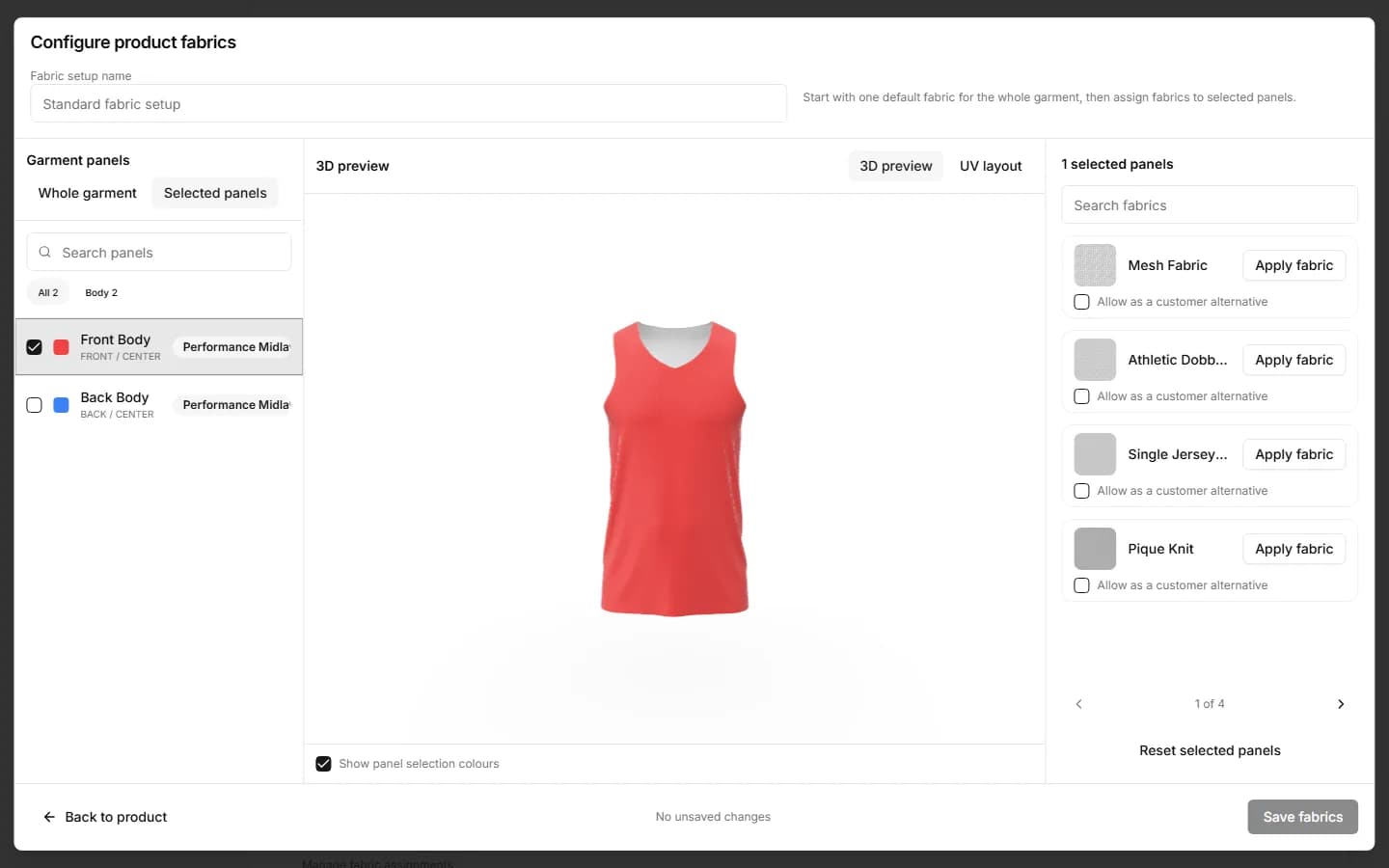
Under Garment panels, choose Selected panels.
- 2
Select the panels, in the list or by clicking them on the 3D garment.
Show panel selection colours tints the selected panels so you can see exactly what you picked.
- 3
Pick the fabric and click Apply fabric.
It becomes the Default for selected panels. Reset selected panels puts them back on the garment default.
- 4
Optional: tick Allow as a customer alternative on other fabrics.
Customers can then switch those panels to the fabrics you allowed, and only to those.
- 5
Click Save fabrics.
Until you save, the page shows Unsaved fabric changes.
Panels come from the UV layout
Panel fabrics are attached to the panels of the UV layout. If you regenerate the UV layout in the 3D Model & UV tab, those assignments are removed and you are asked to confirm first. Each setup keeps its whole-garment fabric.
If the tab says to set up UV panels first, the product has no panels to assign yet. Generate or review the panels in the 3D Model & UV tab, then come back.
Named fabric setups
A setup is a complete fabric configuration with its own name: for example "Standard" with jersey everywhere and "Pro" with mesh side panels. A product can have several.
- Add fabric setup creates one; give it a name.
- Edit setup opens its panel assignments and customer choices.
- Use as product default picks the setup the customizer opens with. It is marked Default setup.
- Remove setup deletes it.
Pricing
Fabric charges are worked out from the customer's current choice. Set them as Fabric fees in Fees & add-ons.
A fabric I made is not in the list.
It does not apply to this product. In Fabrics, set it to All Products, to this product's category (By Category), or to this product (Specific Products).
The tab says the panels have changed.
The UV layout was regenerated after you assigned panel fabrics. Assign the panel fabrics again and save.
Can a customer pick any fabric for a panel?
No. Only the panel default and the fabrics you ticked as alternatives for that panel.