
Sizes and size chart
Open /dashboard/productsEverything about sizing lives in one tab of the product page: Pattern Sizes. It answers three questions: which sizes you sell, what each size is cut from, and how big each size really is.
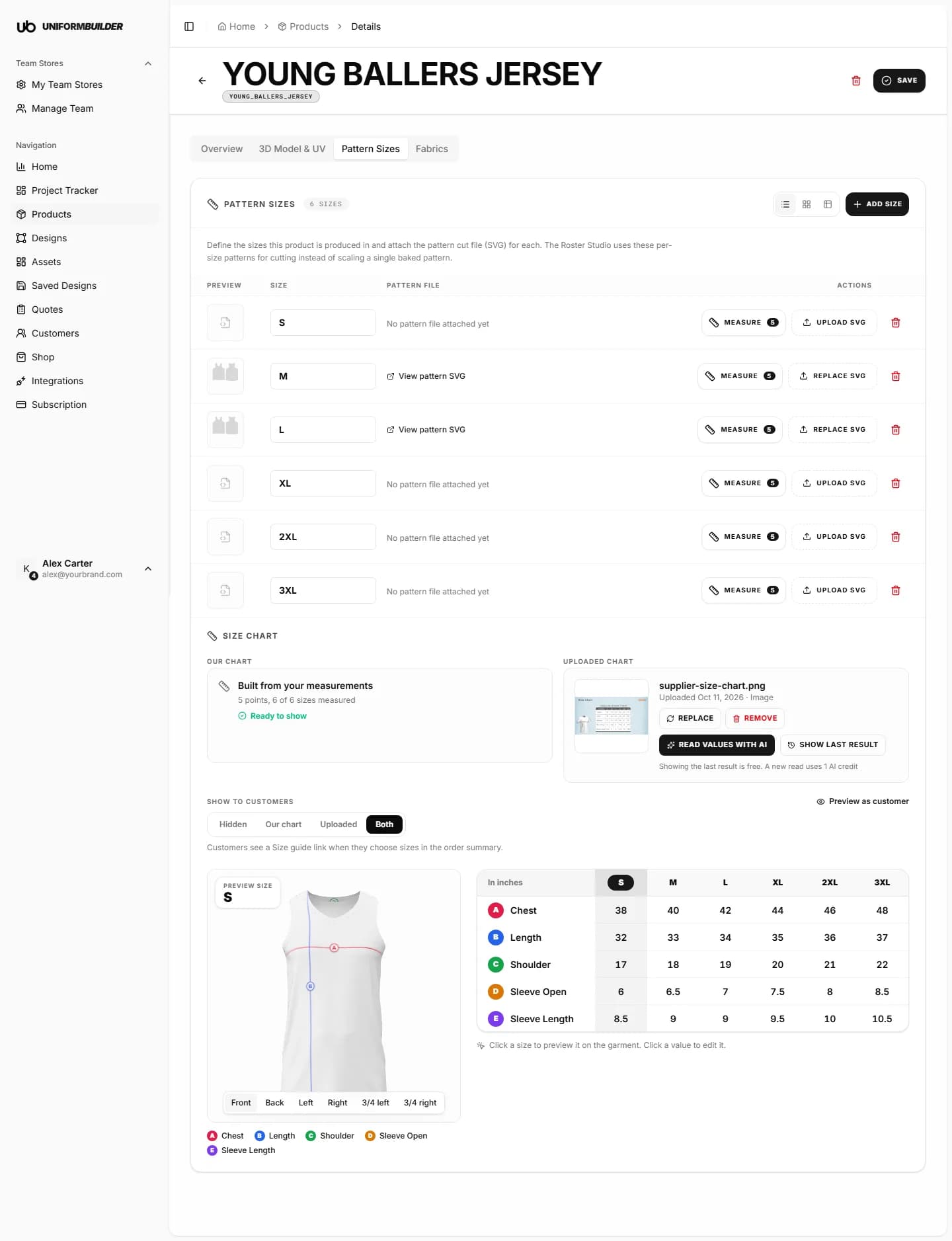
Open a product from Products, then the Pattern Sizes tab. The View switch at the top moves between the List view, the Grid view and the Size chart.
Adding sizes
- 1
Click Add Size.
A new empty row appears. It is saved as soon as you type its label.
- 2
Type the size label, for example S, M, XL or 3XL.
Customers pick from exactly these sizes in the order summary. A product with no sizes offers a single ONE SIZE.
- 3
Optional: click Upload SVG to attach the cut pattern for that size.
Each size can have its own pattern file, so a design on a small is not just a stretched copy of the large. Replace SVG swaps it later.
Note
Pattern files are optional. Without them the designer uses the product UV pattern for every size. Add them when print accuracy across the size range matters, for example for production cutting.
Building the size chart
The size chart lists how big each size is at each measurement point: Chest, Length, Shoulder and so on. You draw each measurement once on the pattern, then type a value per size.
- 1
Click Measure on a size.
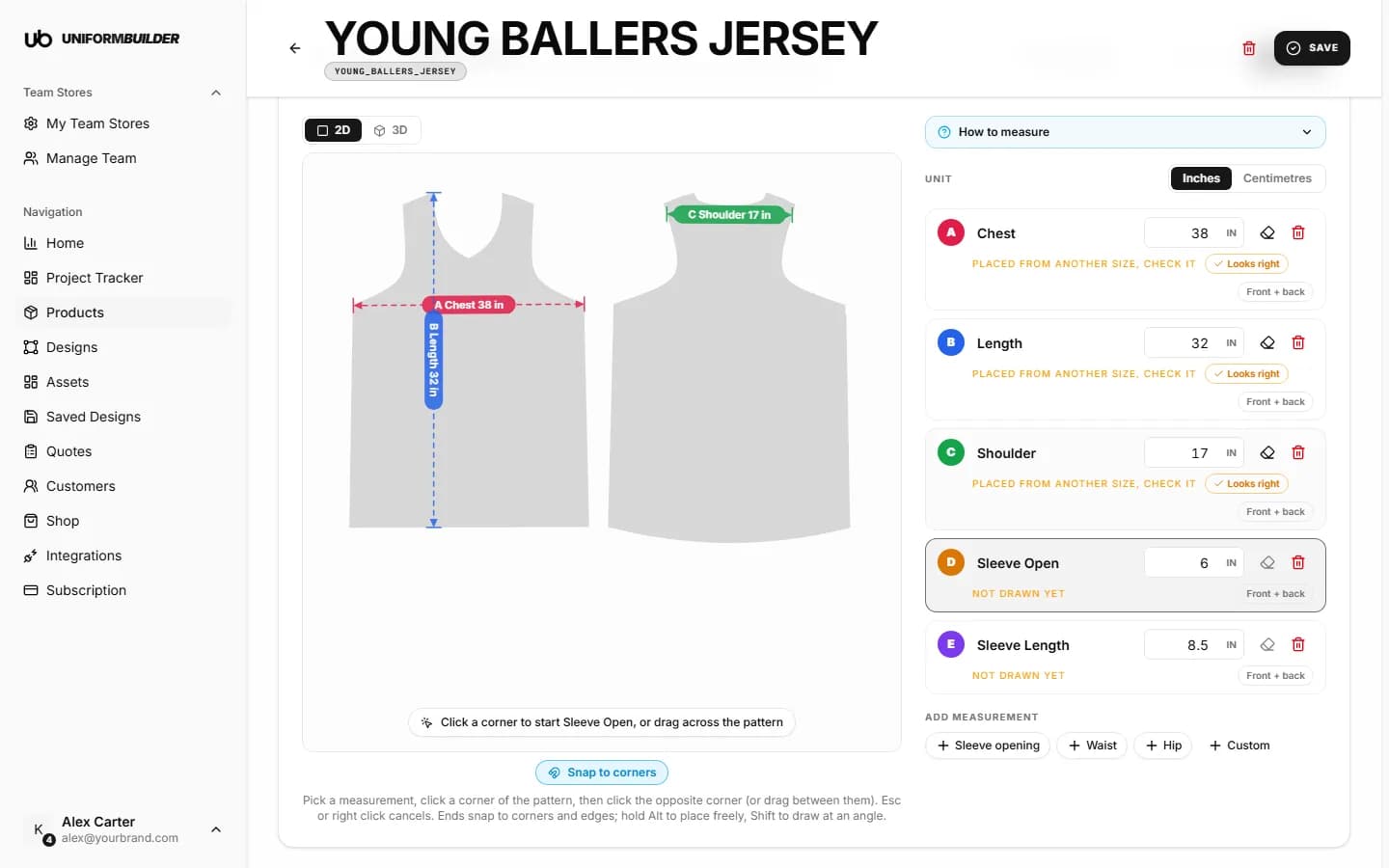
The pattern of that size opens with the measurement list on the right.
- 2
Add a measurement.
Pick one of the ready names (Chest, Length, Shoulder, Sleeve length, Sleeve opening, Waist, Hip) or Custom. Each one gets a letter, A, B, C, in the order you add them.
- 3
Draw it on the pattern.
Hover a corner: it lights up when the line will snap there. Click it, move to the opposite corner, and click again. Esc or a right click cancels. Hold Alt to place a point freely, Shift to draw at an angle.
- 4
Type the value for this size.
Choose Inches or Centimetres under Unit. The unit applies to the whole chart.
- 5
Move to the next size with the arrows, or All sizes.
Changes save when you leave a size. Save and close saves and returns to the list.
Draw once, reuse on every size
Lines you draw on one size are placed on the other sizes for you. They show dashed with Placed from another size, check it. Look, click Looks right, and type the value.
Full round measurements
Some charts give a full round, front and back together, for chest or waist. Tick Front + back on that measurement: the line on one piece then carries half of the value.
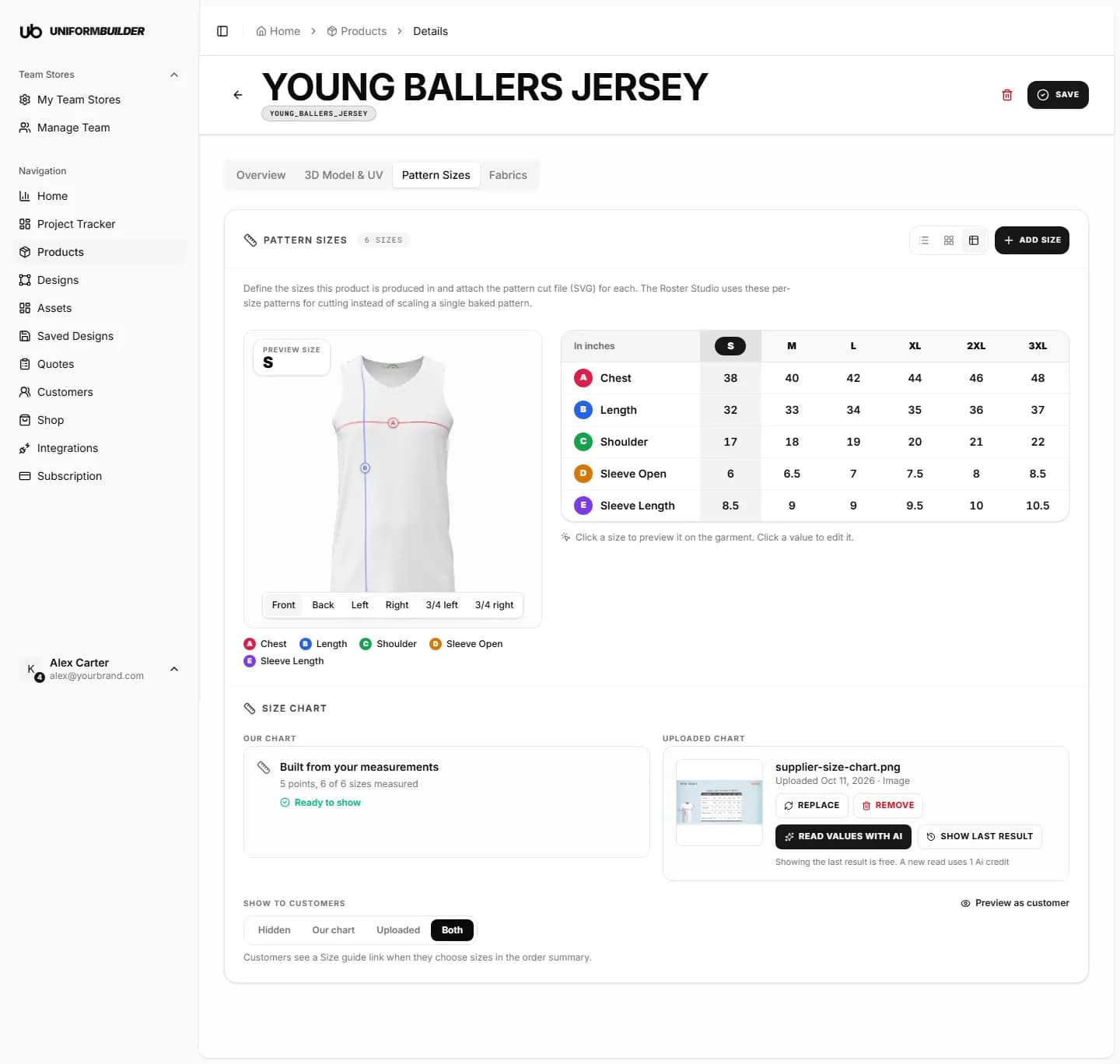
The Size chart view shows the finished table. Click a size to preview its lettered lines on the 3D garment, and click any value to edit it in place.
Using your supplier chart
If your supplier already sends a size chart, upload it under Uploaded chart: an image or a PDF, up to 10 MB. You can show it to customers as it is, or let AI read the numbers into your own chart.
- 1
Drop the image or PDF on Uploaded chart.
- 2
Click Read values with AI.
It uses 1 AI credit. Show last result reopens the last read for free.
- 3
Review the values before anything is saved.
Each row from the file is matched to one of your points and each column to one of your sizes. Change a match, skip a row, create a missing size, or click any value to correct it. Notes at the top flag converted units, ranges and half measurements.
- 4
Click Apply.
Careful
Some supplier charts give body measurements (the person) rather than garment measurements (the clothing). The review tells you when a chart looks like a body chart. Check it matches what your points measure before applying.
Showing a size guide to customers
Under Show to customers, choose what customers see. When it is not hidden, a Size guide link appears where they choose sizes in the designer and the order summary.
| Field | What it does |
|---|---|
| Hidden | No size guide for this product. |
| Our chart | The chart you built. Needs a value for at least one size. |
| Uploaded | Your supplier file, as uploaded. |
| Both | Both, side by side. |
Preview as customer opens the guide exactly as a customer sees it.
The measure screen says there is no pattern.
That size has no SVG and the product has no UV layout yet. Upload a pattern SVG for the size, or generate the UV layout in the 3D Model & UV tab.
I removed a measurement by mistake.
Removing asks for a second click because it removes the point from every size. Add it again with the same name and draw it once; values per size have to be typed again.
Is the chart shown in the quote PDF or tech pack?
Not yet. Today it is shown to customers in the designer and order summary.