
Quotes
Open /dashboard/quotesA quote request is what arrives when a customer finishes a design and asks you for a price. This page is the queue: every request, what was configured, who sent it, and what you do next.
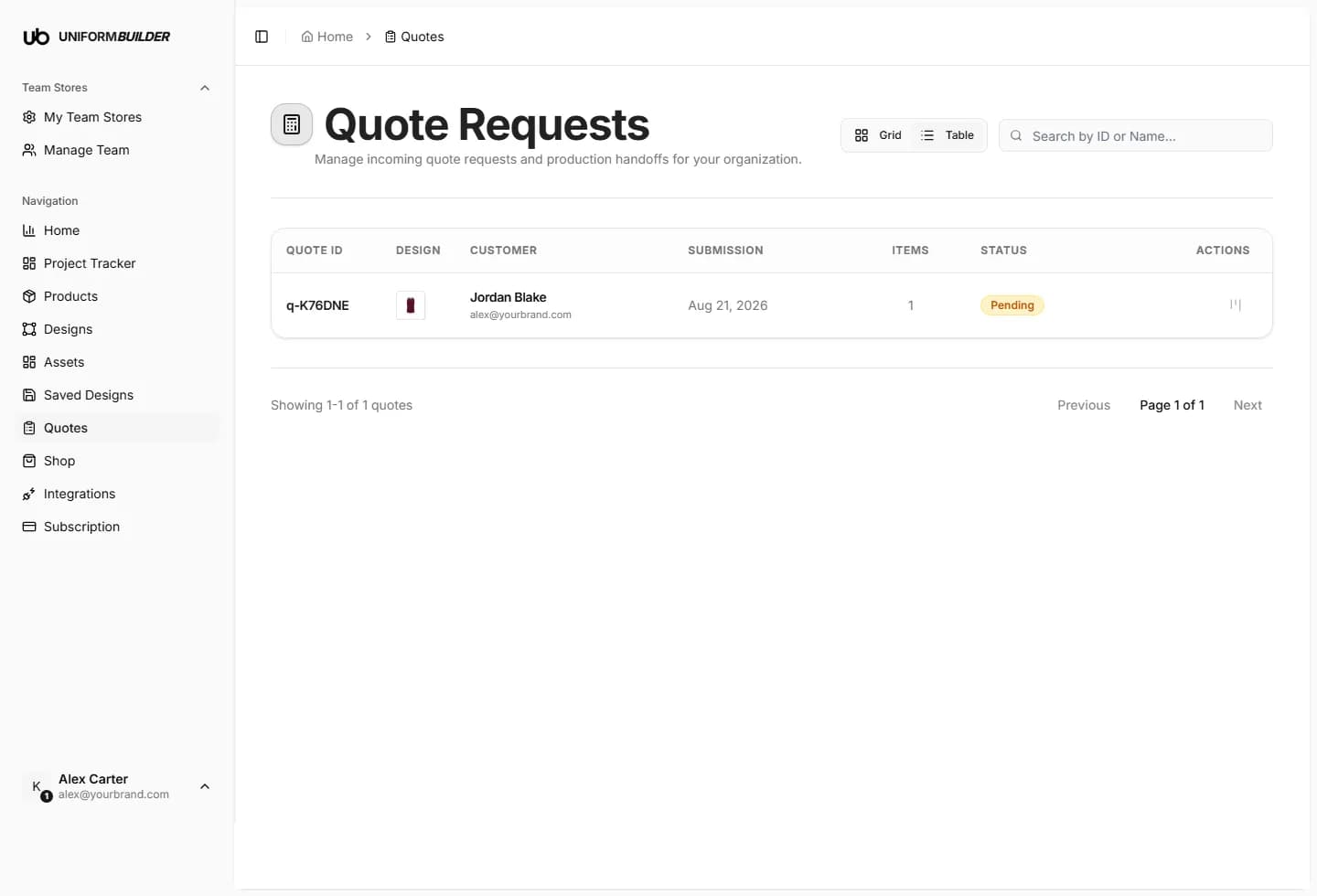
The queue
- Grid shows each request as a card with its design previews; Table shows quote ID, design, customer, submission date, item count and status.
- The search box finds a request by ID or by customer name. Customers quote their reference code, so this is the fastest route.
- The organization selector switches between your team stores when you run more than one.
Statuses
| Field | What it does |
|---|---|
| Pending | Newly arrived. Nobody has responded yet. |
| Discussion | You are going back and forth with the customer on details or price. |
| Approved | The customer accepted. It becomes a job. |
| Rejected | It is not going ahead. |
Inside a quote
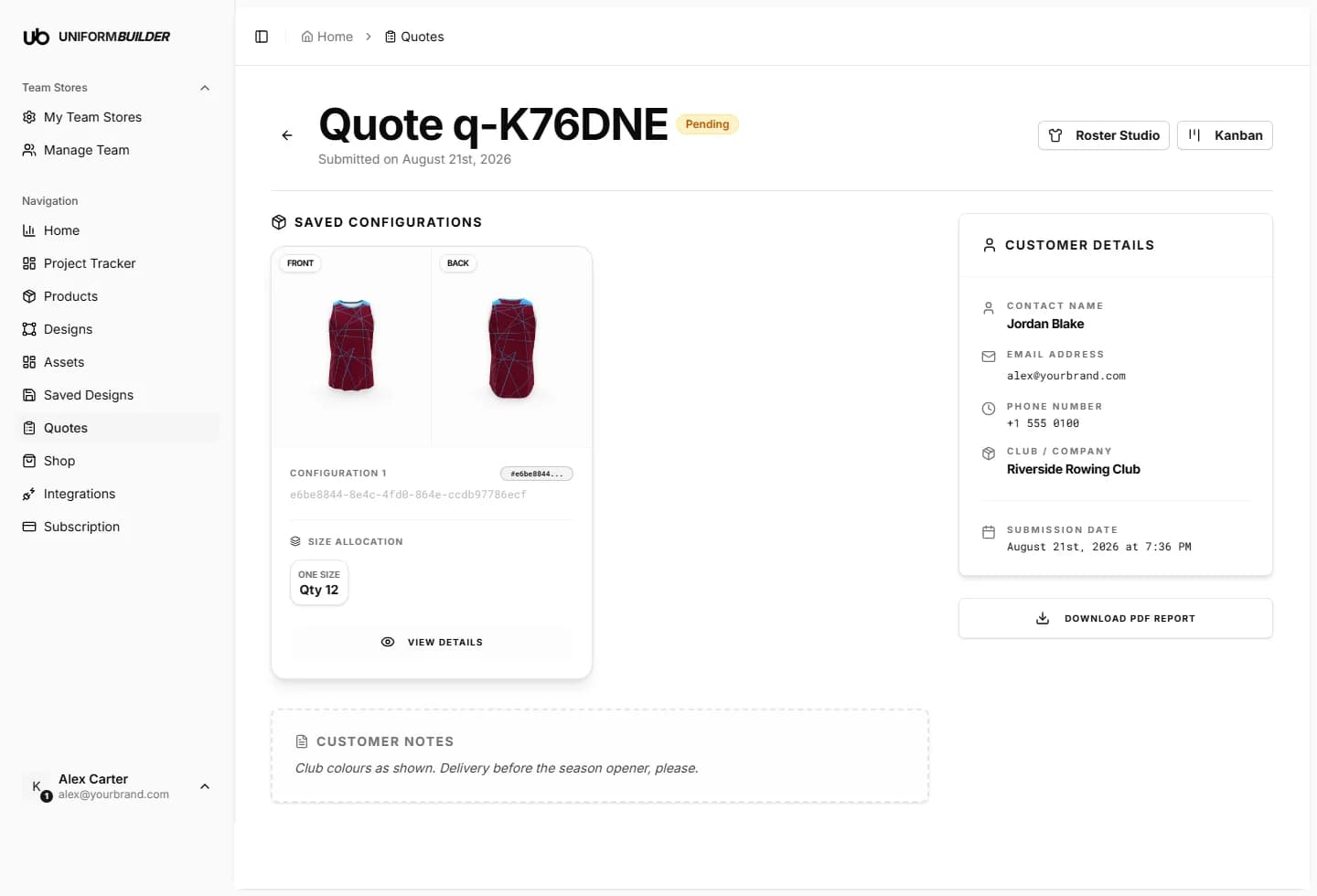
Click a request to open it. The quote reference and submission date sit at the top, then everything the customer sent.
| Field | What it does |
|---|---|
| Saved configurations | One card per configuration ordered, with front and back previews, the size allocation, and the quantity. This is the design, not a description of it. |
| Team roster | Where the customer supplied names and numbers, each line is listed with its two text fields and its size. |
| Customer notes | Anything the customer typed when submitting. |
| Customer details | Contact name, email address, phone number, club or company, and the submission date. |
View details on a configuration card opens the full breakdown: every colour used, every panel, every piece of text, in the form your production team needs.
What you can do with a quote
- 1
Download PDF report produces the tech pack.
It carries your store logo, the configuration previews, the colour references and the roster. This is the document you send to the customer or to your factory. Generating it takes a few seconds.
- 2
Kanban hands the job to the Project tracker.
The customer, products and quantities are carried across, so the card starts complete rather than empty.
- 3
Roster Studio opens the team roster for editing.
Use it to fix a misspelled name or a wrong size before the print file is built.
- 4
Move the status as the conversation progresses.
Pending, discussion, approved or rejected. The Home page conversion figure is calculated from these.
Check the roster before you print
Names and numbers are where teamwear orders go wrong. Two minutes in Roster Studio is cheaper than a reprint.
If no quotes are arriving
An empty queue is usually one of four things. Work through them in order.
- 1
Check you have visible products.
A product with Visibility off does not appear in the public designer. See Products.
- 2
Open your public storefront yourself.
Use Landing Page in the account menu and try to submit a quote as a customer would. Most problems show up immediately.
- 3
Check your quote delivery mode.
If it is set to push to store, requests become draft orders in your shop rather than appearing here. See Integrations.
- 4
Check your SMTP settings.
If email confirmation is on but SMTP is misconfigured, customers get no confirmation and often assume the submission failed. See Integrations.
Can a producer see all quotes?
No. Producers only see the quotes attached to project tracker tasks assigned to them. Owners and admins see the whole queue. See Team and permissions.
Where does the price on a quote come from?
From the product price and its tiers, times the quantities. Set those on the product. See Products.
A customer says they never got a confirmation.
Their request may still have arrived: check the queue by their name. Confirmation emails depend on your SMTP configuration, which is separate from the quote being recorded.