
Fonts
Open /dashboard/assets/fontsFonts decide what player names, squad numbers and slogans look like. Only the fonts you publish here appear in the designer, and that is what keeps every order on brand instead of arriving in whatever typeface the customer happened to like.
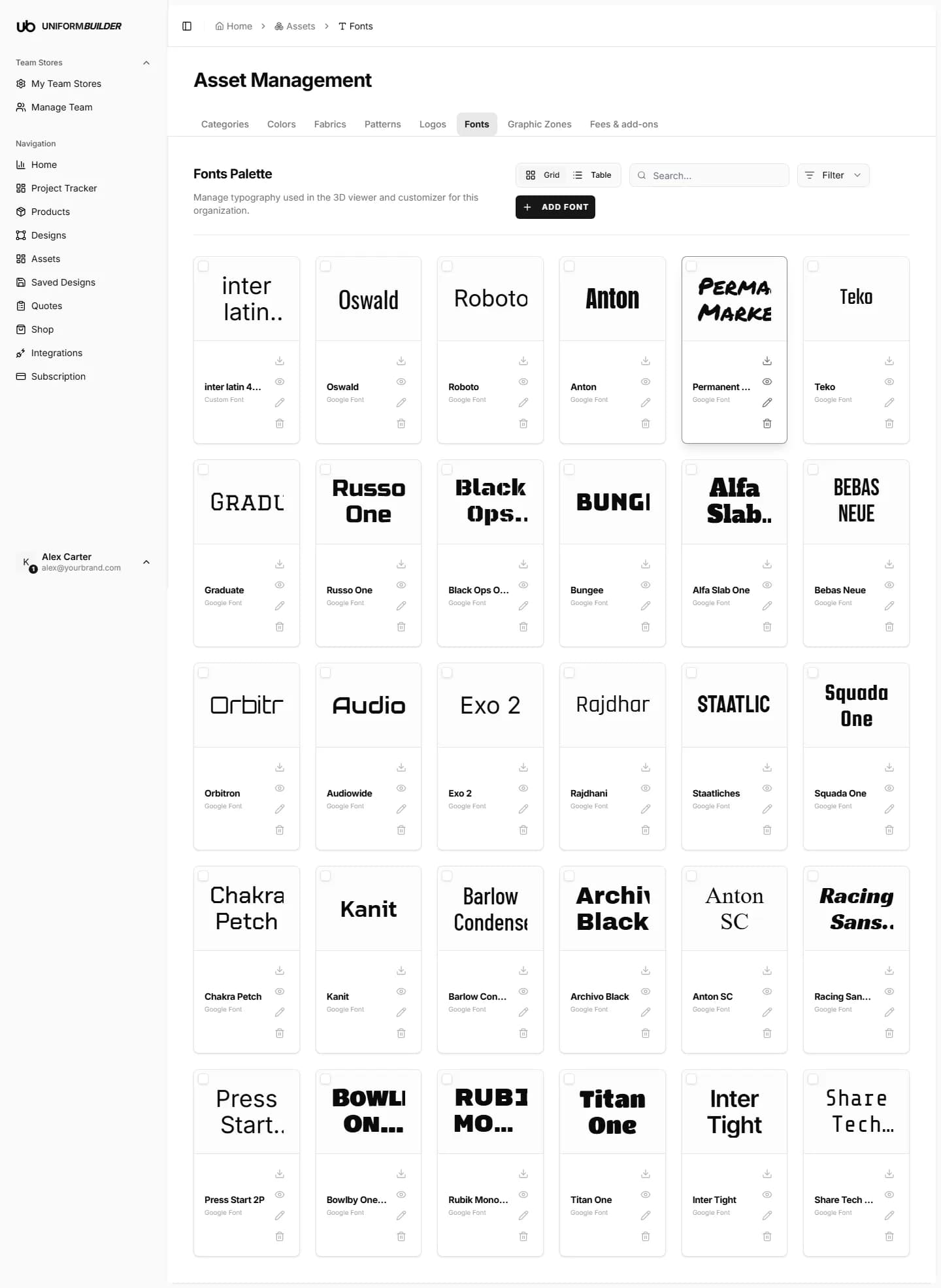
Open it from Assets in the sidebar, then the Fonts tab.
Adding a font, step by step
- 1
Click Add Font in the top right.
- 2
Choose Google Font or Custom Upload at the top of the dialog.
Google Font is the quick path and covers most needs. Custom Upload is for a typeface you have licensed.
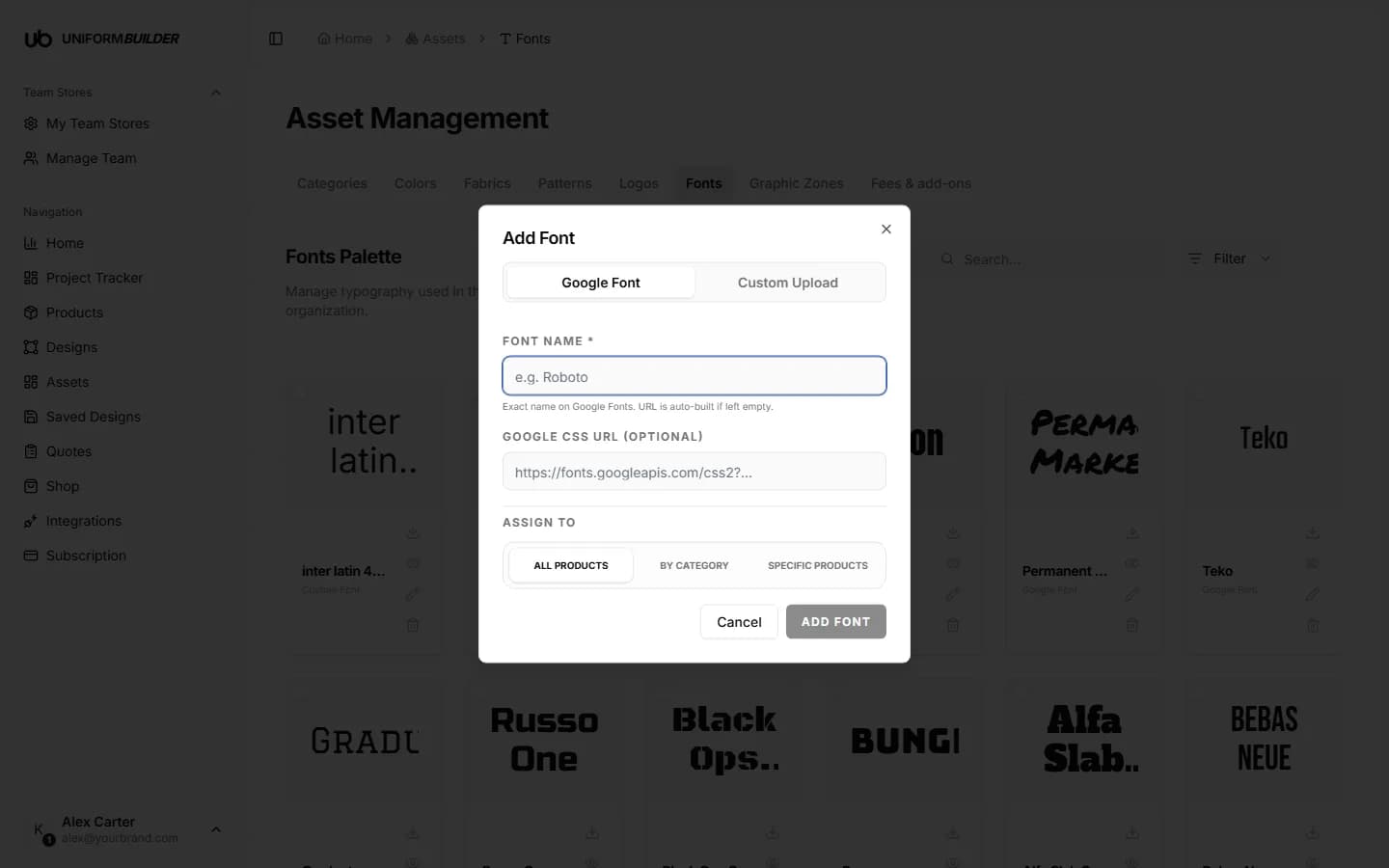
The Add Font dialog, on the Google Font tab. - 3
For a Google font: type the exact name as it appears on Google Fonts.
For example
Oswald,Teko,Bebas Neue. Spelling and spacing matter. Leave Google CSS URL empty and it is built for you; only fill it in if you need a specific weight or subset. - 4
For a custom upload: choose your font file.
Use the file your foundry supplied. Check the licence first, see the warning below.
- 5
Set Assign to: All products, By category, or Specific products.
Same rule as everywhere. See the Assign to rule.
- 6
Click Add Font. It appears in the palette with a live preview.
Choosing fonts that work on garments
- Heavy and condensed wins. Names and numbers are read from a distance, often while moving. Thin decorative faces disappear.
- Check the numerals. A font can have beautiful letters and awful digits. Squad numbers are the part people see most.
- Two fonts is usually enough. One for names and numbers, one for slogans. More than that and orders start looking inconsistent.
- Test the longest name you sell to. A condensed face saves you from squeezing a fourteen letter surname onto a back panel.
Licensing
Check your licence before uploading
Publishing a font here makes it available for printing on goods you sell. Many free fonts allow personal use only and explicitly do not cover merchandise. A licence problem found after a production run is an expensive one.
Fonts and print files
The font you publish is the one used when a quote is turned into a print ready outline file. Removing a font that past orders used can therefore affect a reprint, so retire fonts deliberately rather than as housekeeping.
Editing and removing
Each card carries a download icon, an eye to preview, a pencil to edit the name or scope, and a bin to remove it. Grid and Table switch views, and the search box filters by name.
The font I added does not render in the designer.
Almost always a spelling mismatch with the Google Fonts name. Check it character for character, including spaces, then re-save.
Can customers type any text they like?
They choose from the fonts you publish here, but the words are theirs. If you need to control wording as well, handle it at the quote review stage in Quotes.
Why not just allow every Google font?
Because you would be promising to print all of them. A short, deliberate list is faster for the customer and safer for you.