
Home and analytics
Open /dashboardHome is the reporting view for your team stores. It answers three questions: how many quotes are coming in, what customers are designing, and which of your presets and colours actually get used.
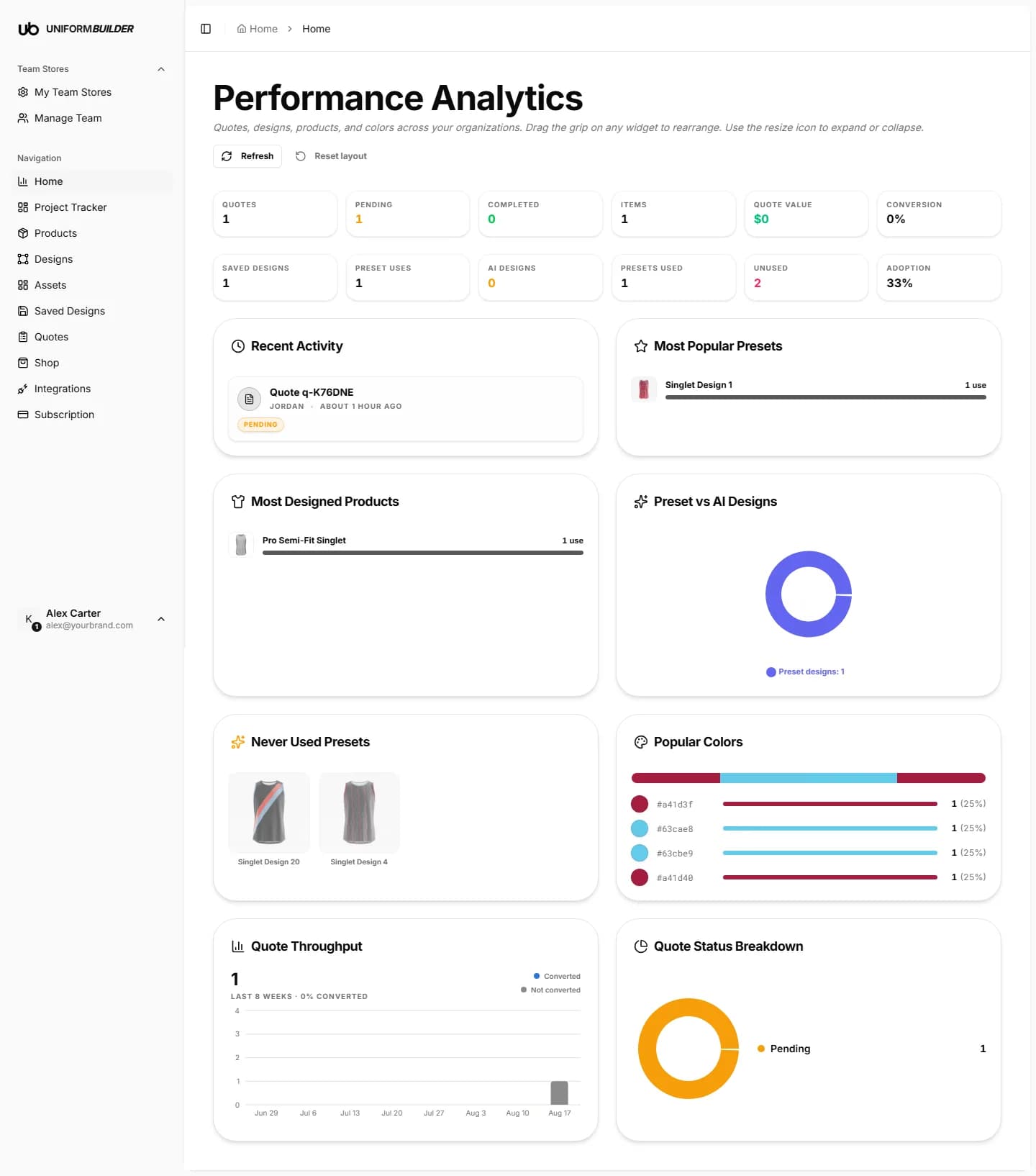
The metric row
The tiles across the top summarise everything in the selected stores.
What each tile counts
| Field | What it does |
|---|---|
| Quotes | Total quote requests received. |
| Pending | Quotes you have not moved out of the new state yet. |
| Completed | Quotes marked as completed. |
| Items | Line items across all quotes. One quote for three garments counts as three items. |
| Quote value | Total value of the quotes, in your store currency. |
| Conversion | Share of quotes that reached the completed state. |
| Saved designs | Designs customers saved in the 3D designer. See Saved designs. |
| Preset uses | How many saved designs started from one of your published designs rather than from scratch. |
| AI designs | Saved designs whose artwork was generated with the AI tools rather than picked from your library. |
| Presets used / Unused / Adoption | How much of your design library is actually being picked up. A low adoption number usually means the designs are hard to find, not that they are bad. |
The widgets
- Recent activity is a running log of quotes, saved designs and product changes.
- Most popular presets ranks your published designs by how often customers used them.
- Most designed products shows which products customers open in the designer most.
- Preset vs AI designs splits saved designs by where the artwork came from.
- Never used presets lists designs nobody has picked. Good candidates for better naming, a better preview image, or removal.
- Popular colours ranks the colours customers choose, which tells you what to keep in stock.
- Quote throughput charts quotes per week over the last eight weeks.
- Quote status breakdown splits your quotes by their current status.
Rearranging the page
- 1
Drag the grip handle on a widget to move it somewhere else on the page.
- 2
Use the resize icon on a widget to expand or collapse it.
- 3
Press Reset layout to put everything back the way it started.
- 4
Press Refresh to pull the latest numbers without reloading the browser.
Note
Your layout is remembered in your own browser. It does not change what your colleagues see.