
Designs
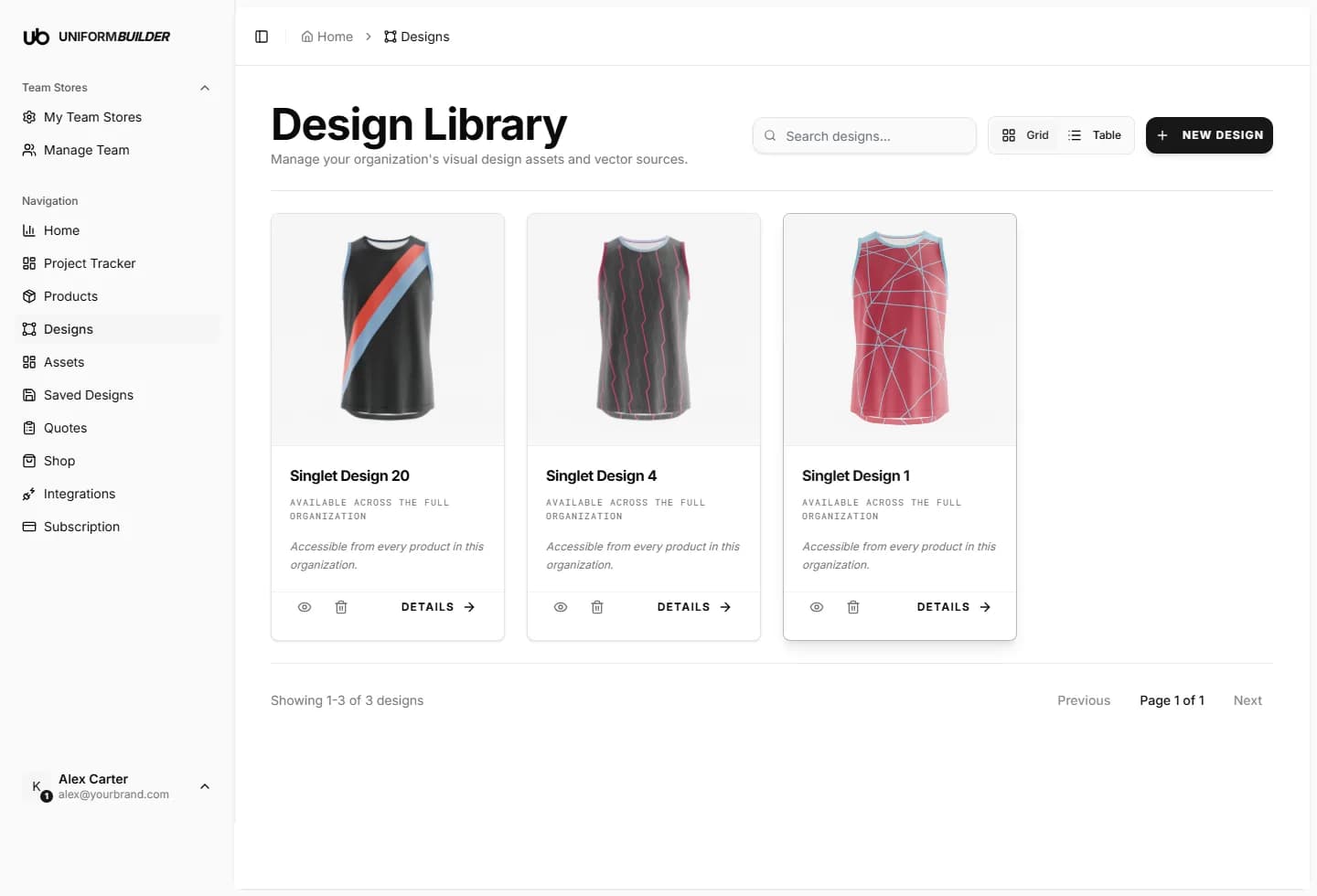
Open /dashboard/designsA design is a finished piece of artwork, drawn for a specific garment shape, that a customer applies in one click and then recolours. Publishing a good set of designs is the single biggest thing you can do to make your storefront easy to buy from.
Adding a design
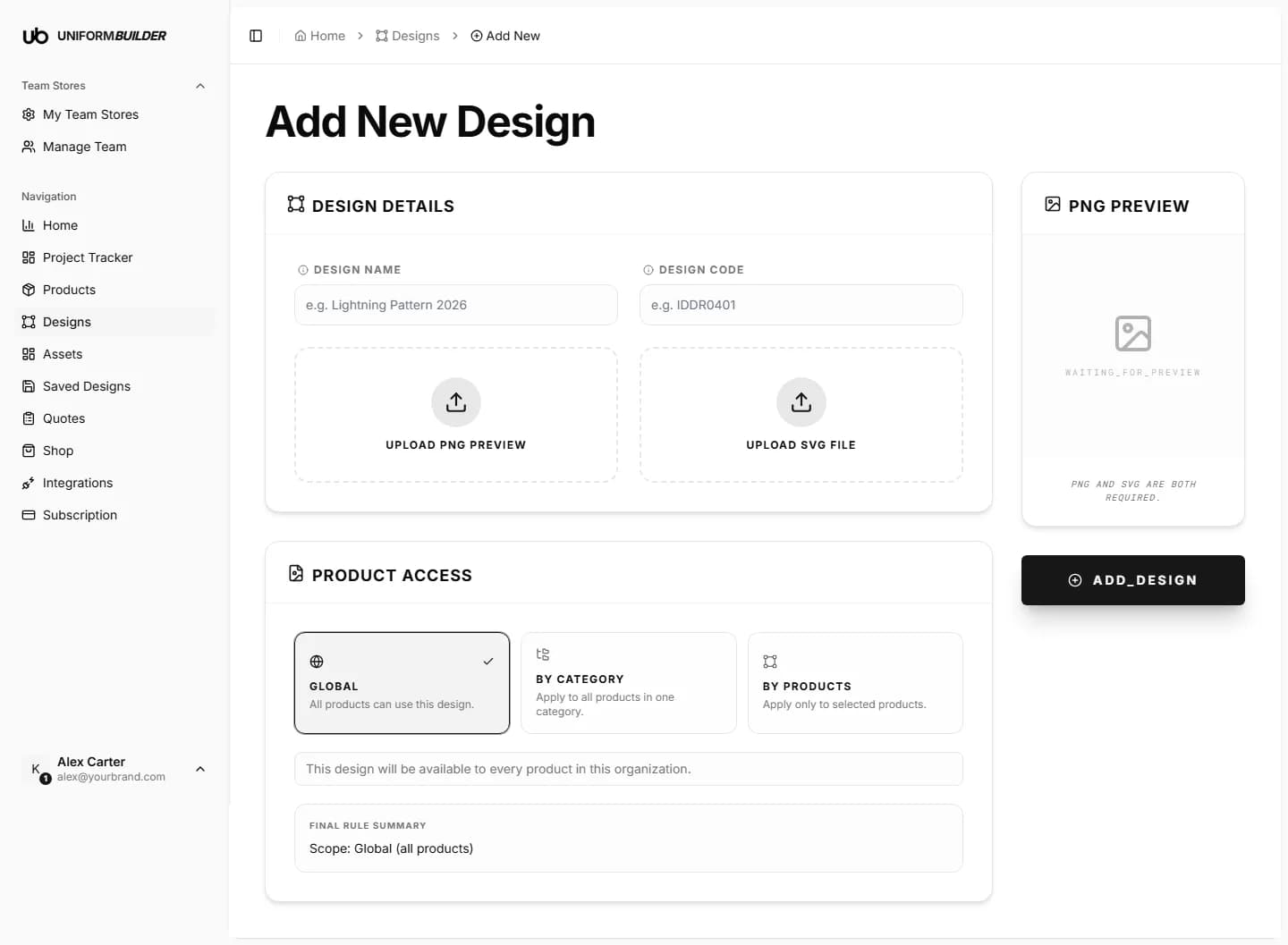
Every design needs two files: a PNG preview so customers can see what they are choosing, and an SVG source so the artwork can be recoloured and printed at any size. Both are required.
- 1
Open Designs and press New design.
- 2
Enter a design name and a design code.
The name is what customers read, for example "Lightning Pattern 2026". The code is your internal reference.
- 3
Upload the PNG preview.
This is the thumbnail in the designer. Use a transparent background and show the artwork as it will appear on the garment.
- 4
Upload the SVG file.
This is the artwork that is actually applied and printed. Its shapes are what the colour rules below act on.
- 5
Choose the product access scope, then press Add design.
The SVG has to be real vector
An SVG that just wraps a bitmap looks fine in the preview and then prints badly, and it cannot be recoloured. Export from your design tool as paths, not as an embedded image.
Which products get the design
Artwork drawn for a singlet does not fit a hoodie. Product access is how you stop the wrong design being offered on the wrong garment.
| Field | What it does |
|---|---|
| Global | Every product in the store can use this design. Right for simple, shape-agnostic artwork. |
| By category | Every product in one category, for example all singlets. This is usually the right answer. |
| By products | Only the products you tick. Right for artwork cut to one specific garment. |
The final rule summary at the bottom of the card restates your choice in plain words before you save, so you can check it at a glance.
Editing a design
Opening a design from the library gives you its targeting and its colour rules.
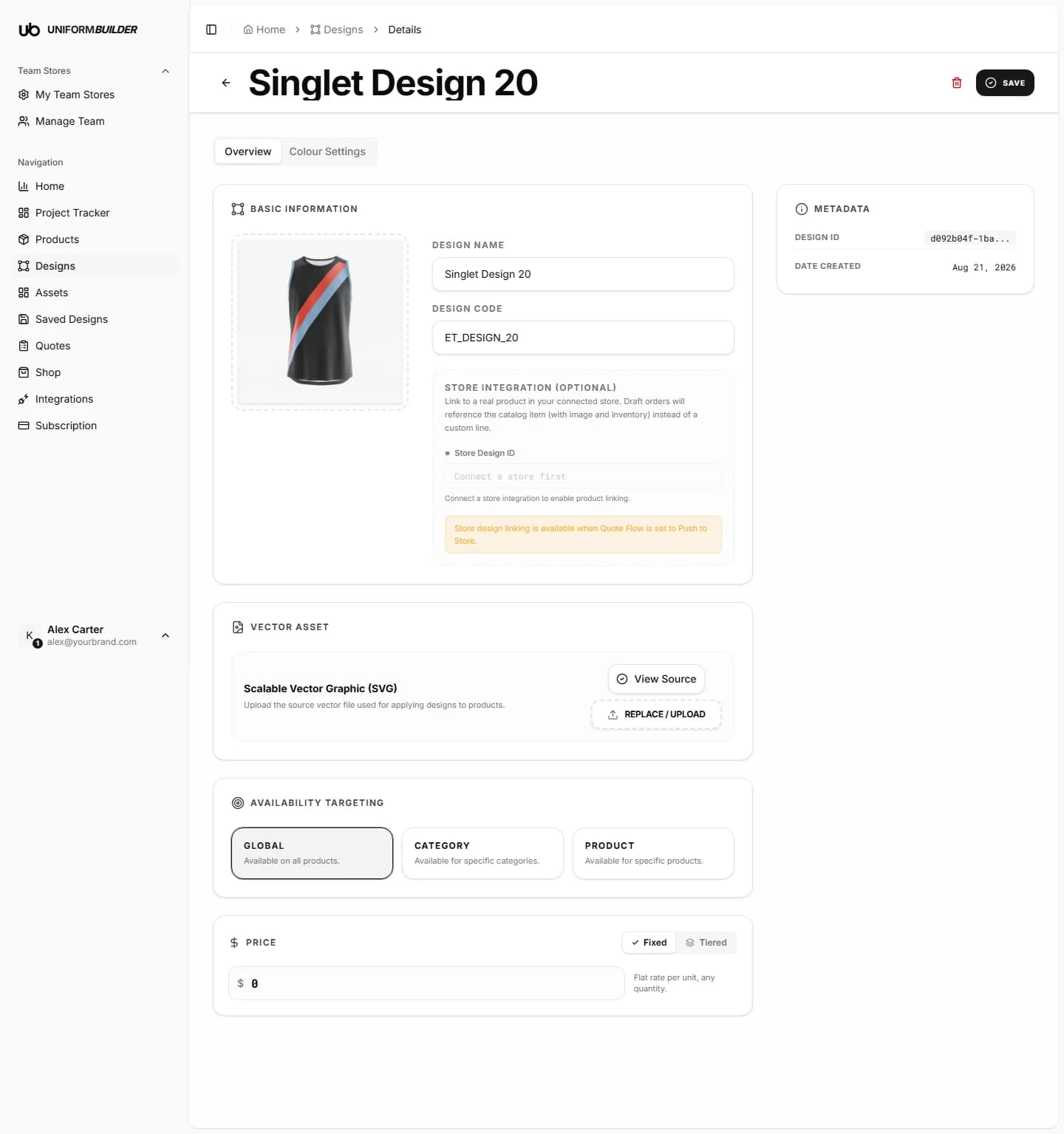
- Targeting changes the product access rule you set when adding it.
- Colour rules decide which parts of the artwork a customer can recolour, and which colours they may use for each part.
- The preview panel shows the effect of a rule immediately, so you can check a combination before publishing it.
Lock the parts that must not change
If a design contains a sponsor mark or a league badge, leave that section out of the recolourable groups. It is much easier than explaining afterwards why a sponsor logo arrived in the wrong colour.
Note
A design colour rule applies on top of the product colour palette. A colour has to be allowed by both the product and the design before a customer sees it. See Products.
How many designs should I publish?
Enough to cover the looks you actually sell, and no more. The Home page has a "never used presets" widget precisely so you can prune the ones nobody picks.
Can customers still design from scratch?
Yes. Designs are a starting point, not a restriction. Customers can begin with a blank garment, and where you have enabled it they can generate artwork with AI as well.
What happens if I delete a design that has been used?
Saved designs keep the artwork they were saved with. The design simply stops being offered to new customers.