
Graphic Zones
Open /dashboard/assets/graphic-zonesA graphic zone is a print position on a product: the front chest, the upper back, a sleeve. You draw it once on the product's flat layout, and from then on customers place their text and artwork into it instead of anywhere on the garment. Every order then arrives at a position, a size and a decoration method your production can actually print.
Two kinds of zone
| Field | What it does |
|---|---|
| Upload inside an area | You draw a rectangle. Customers place their text or artwork inside it and can move and resize it, but never outside the boundary. Use it for names, numbers, sponsor panels: anything whose exact position can vary a little. |
| Choose a fixed position | You click one point. Content lands exactly there, at the size you set, and stays put. Use it for a club crest or a brand mark that must sit in the same place on every order. |
Creating a zone, step by step
- 1
Click New graphic zone.
The editor opens with the flat layout on the left and the settings on the right. The yellow line at the top lists what is still missing before you can save.
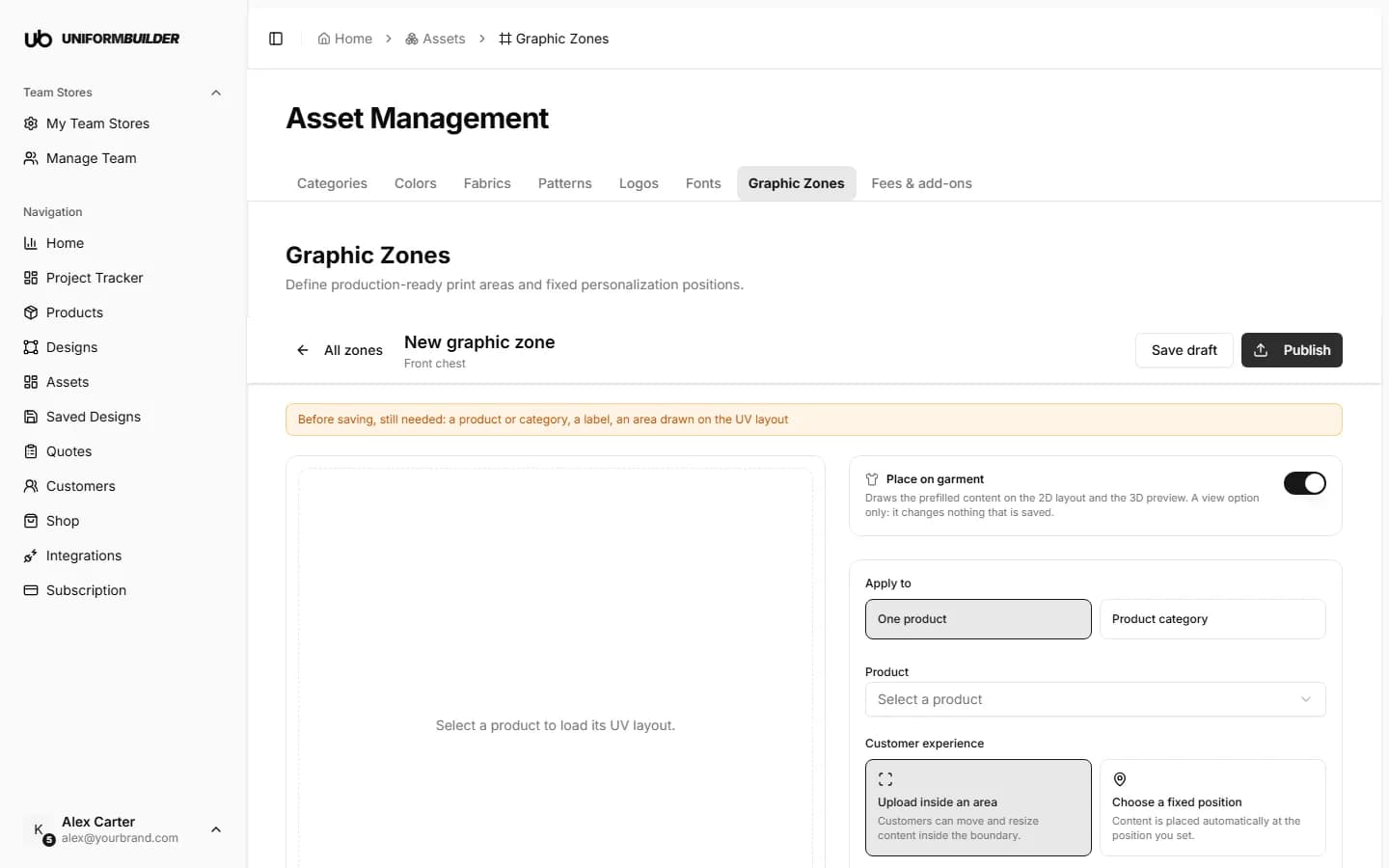
A new zone: the banner lists what still needs filling in. - 2
Under Apply to, choose One product or Product category, then pick it.
A category zone appears on every product in that category, including sub-categories. Pick a Preview product to draw on: its layout stands in for the whole category, so choose one whose pieces are shaped like the others.
- 3
Choose the Customer experience: Upload inside an area or Choose a fixed position.
- 4
Give the zone a Label, such as "Player name" or "Front chest".
Customers see this label when they choose where their text or artwork goes, so name it the way they would.
- 5
Draw the zone on the layout.
With Edit selected, drag a rectangle across the piece where the print goes, then drag its edges or corners to adjust it. Undo steps back, the bin icon clears the drawing, and Select lets you click a zone without moving it.
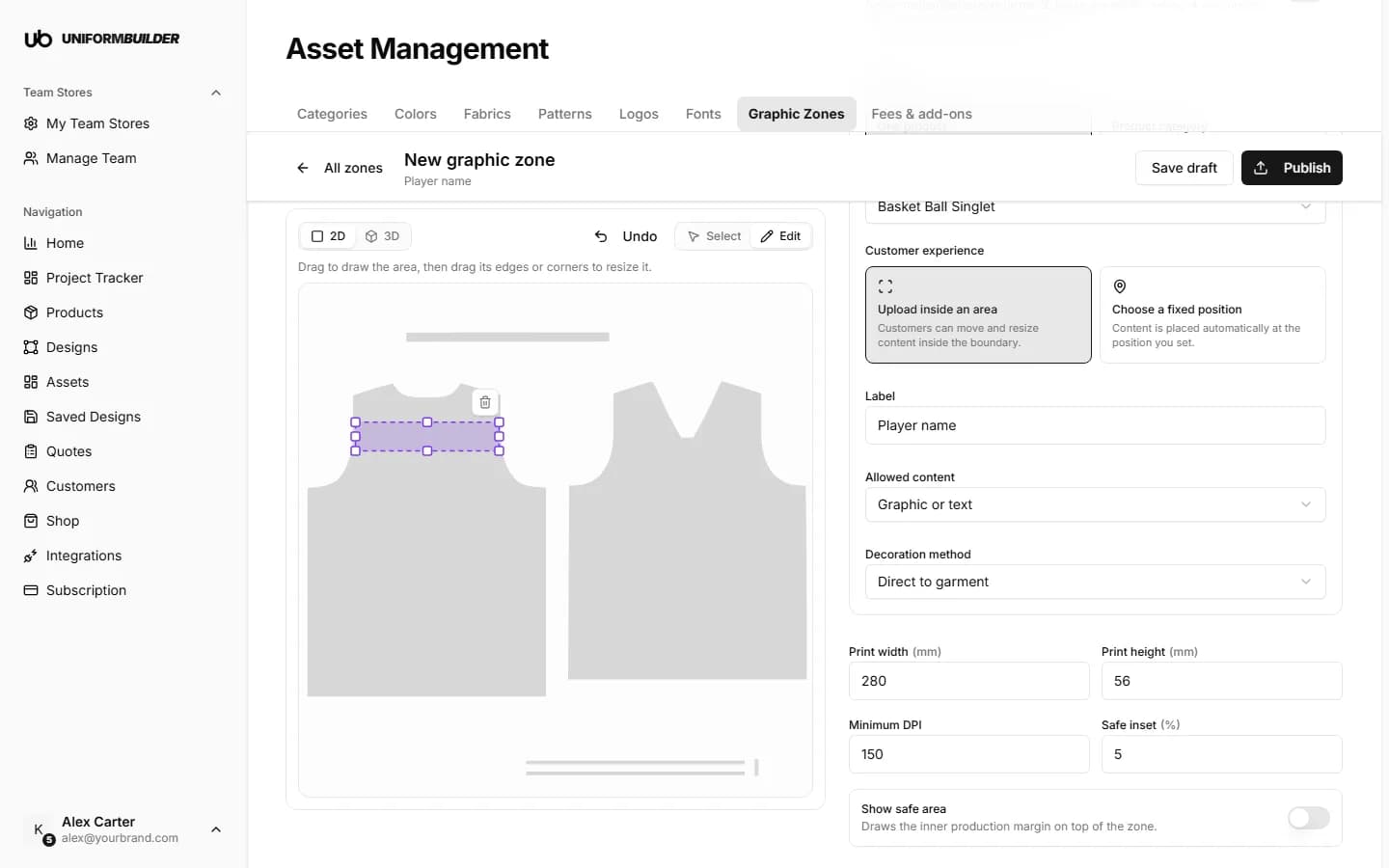
A name band drawn across the upper back, centred under the collar. - 6
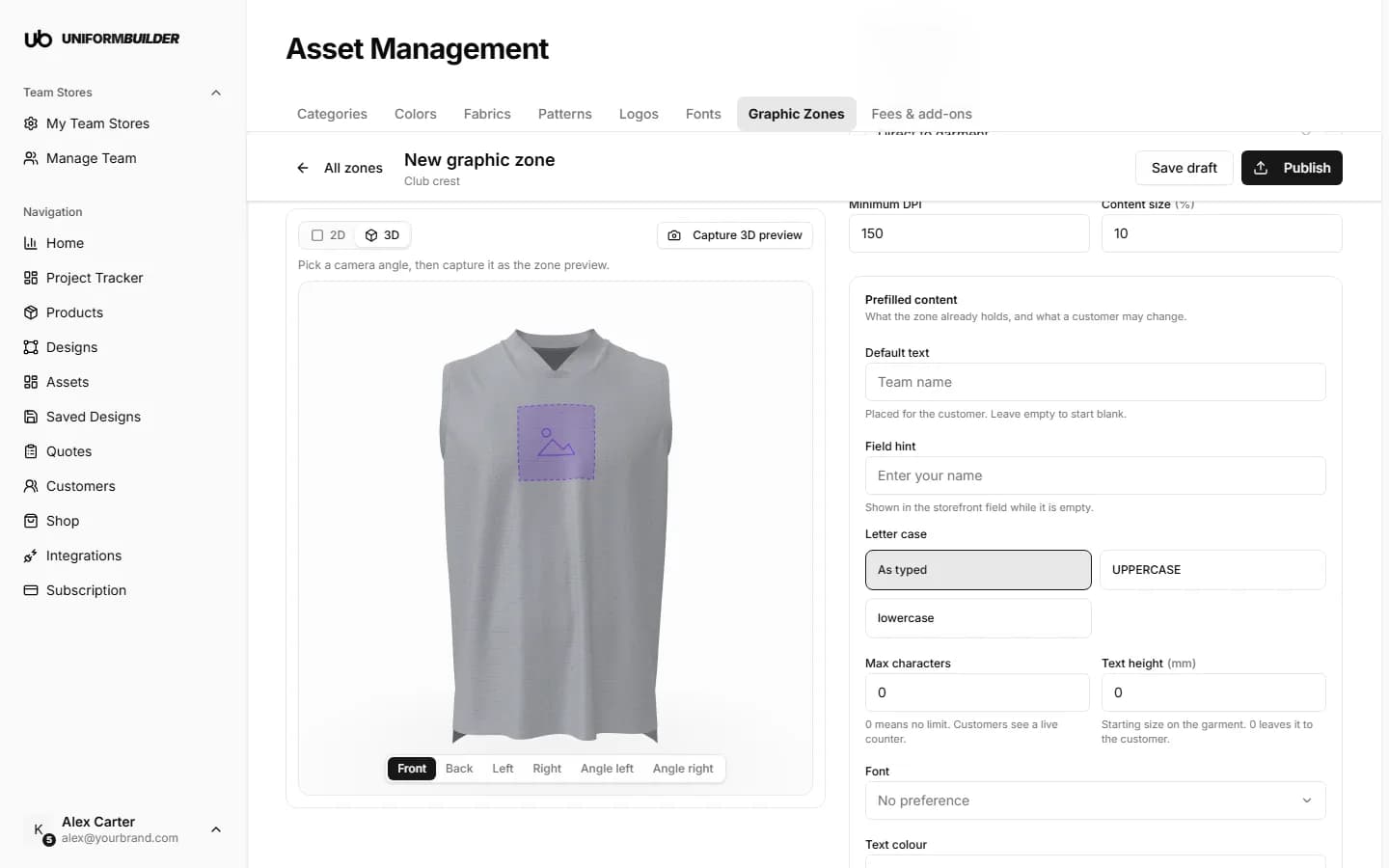
Check the position on the 3D garment.
Switch the stage from 2D to 3D and pick a camera angle (Front, Back, Left, Right or an angled view). If the zone is not where you expect, go back to 2D and move it. Capture 3D preview saves the current view as the picture customers see when they choose this zone.
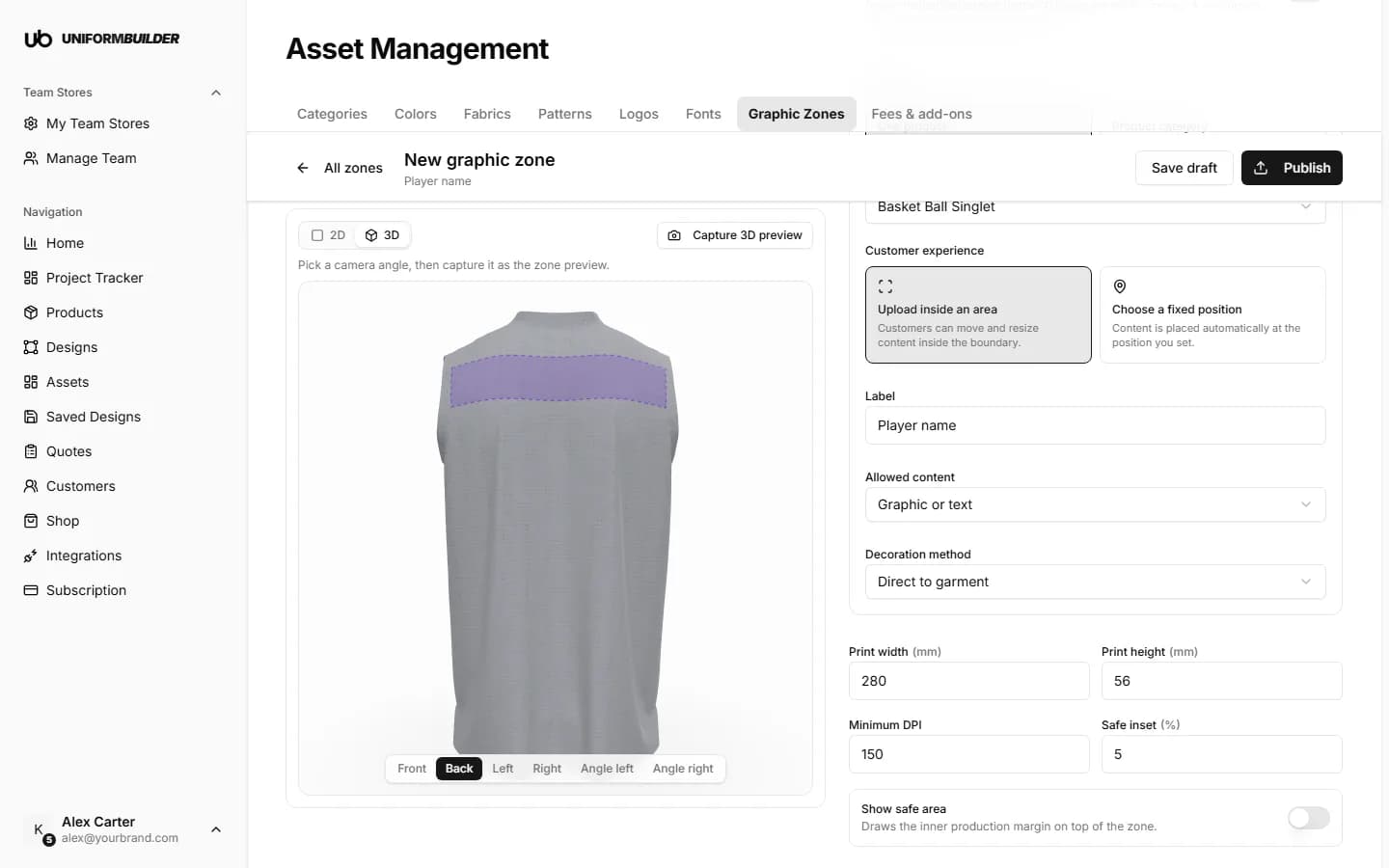
The same zone on the 3D garment, from the back. - 7
Set Allowed content and Decoration method.
Allowed content is what customers may place here: Graphic, Text, Number or Graphic or text. The decoration method (screen print, embroidery, sublimation and so on) is recorded on every order that uses the zone.
- 8
Click Save draft to keep working on it later, or Publish to offer it to customers.
Only published zones appear in your storefront. You can publish or unpublish a zone at any time from the list.
Find the right piece on the layout
The flat layout shows every pattern piece of the garment side by side. On a singlet or jersey the front usually has the deeper neckline (a V or a scoop) and the back the higher one. If you are unsure, draw a small zone and look at it in 3D before you size it properly.
Placing a fixed position
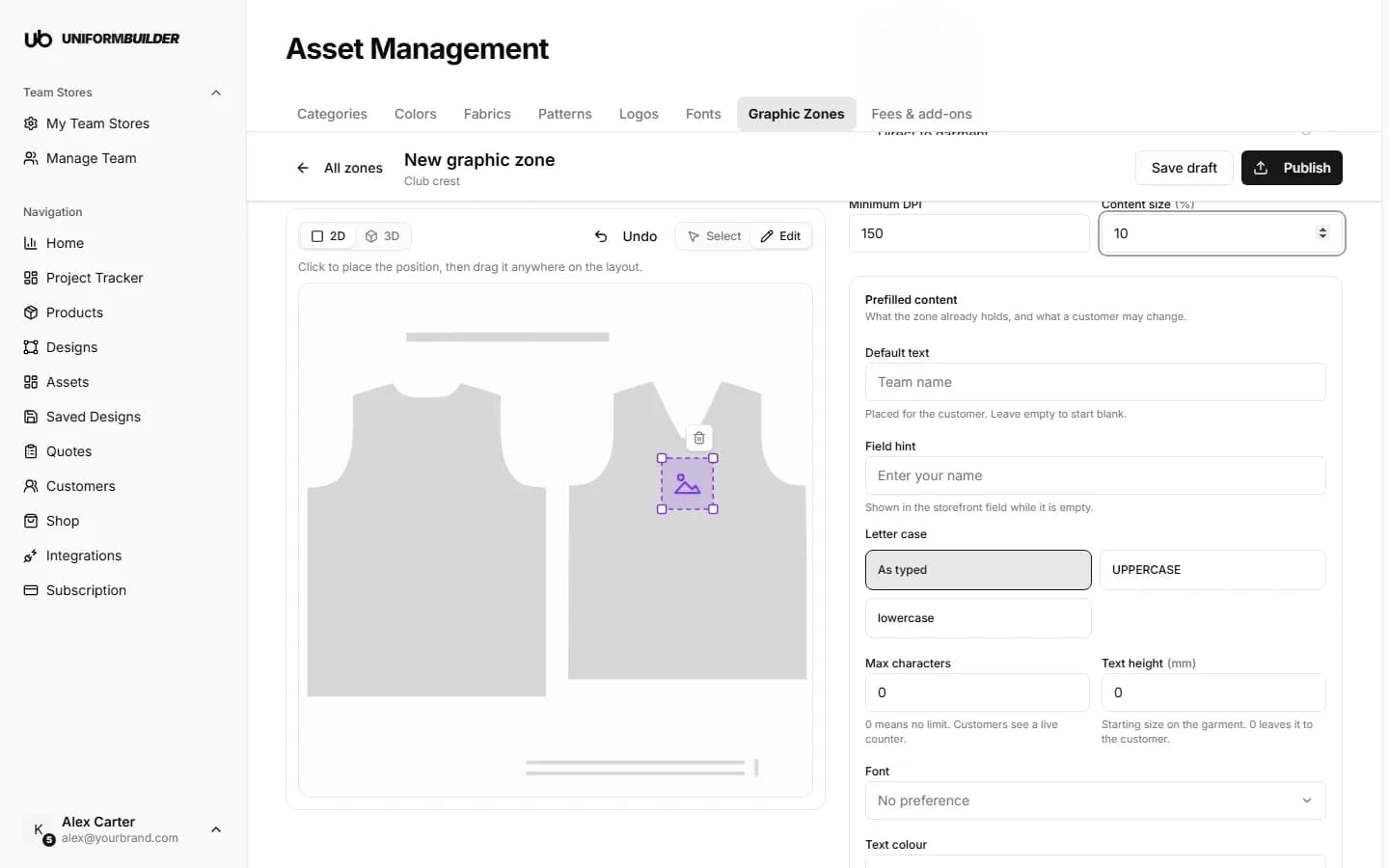
Choose Choose a fixed position, then click the layout where the content belongs. Drag the marker to adjust it, and set Content size to how large the content prints, as a share of the layout. A crest at the centre of the chest is usually around 10%.
Print size and production settings
| Field | What it does |
|---|---|
| Print width and Print height | The size of the area in millimetres. These stay in step with the drawing: drag the rectangle and the numbers change, type a number and the rectangle resizes. |
| Minimum DPI | The lowest image resolution you accept for this print, saved with the zone for your production team. |
| Safe inset | An inner margin, as a percentage of the area. Customers cannot push content into it, so nothing ends up on a seam or a trimmed edge. Show safe area draws the margin while you work. |
| Content size | Fixed positions only: how large the content prints, as a share of the layout. |
Text and number rules
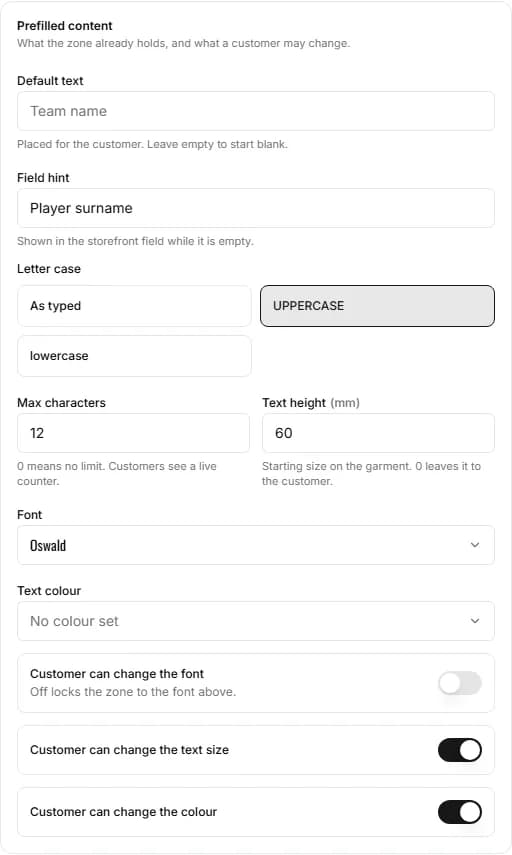
When Allowed content includes text or numbers, the Prefilled content panel sets how that text behaves. These rules are enforced in your storefront: when the customer places text in the zone, and again every time they edit it.
| Field | What it does |
|---|---|
| Field hint | The grey example text shown in the customer's text box while it is empty, such as "Player surname". |
| Letter case | UPPERCASE or lowercase converts whatever the customer types, as they type. As typed leaves it alone. |
| Max characters | The most characters the zone accepts, spaces included. Longer text is cut to fit when placed, and the customer sees a live counter while editing. 0 means no limit. |
| Text height | How tall the text starts on the garment, in millimetres. 0 leaves the size to the customer. |
| Font and Text colour | The font from your Fonts library and the colour the zone uses. |
| Customer can change the font, text size, colour | Turn a switch off to lock that setting. A locked font or colour replaces whatever the customer picked, a locked size hides the size slider, and the customer sees a short note that the store has set it. |
Team names and numbers
For a roster, lock the font and the colour and set a text height: every player's surname then prints identically, and only the letters change from shirt to shirt.
Default text and default artwork
Default text and Default artwork are drawn on the zone in this editor's previews (turn on Place on garment to see them), so you can judge size and position. In the storefront, customers add their own text and artwork.
What customers may do with their content
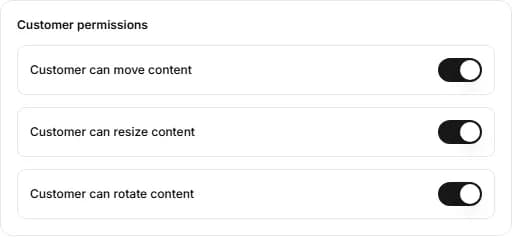
- Customer can move content: drag it around inside the area.
- Customer can resize content: make it bigger or smaller, never past the area.
- Customer can rotate content: turn it.
Turning any of these off makes it a one-item zone
A zone with a locked permission holds one text or graphic. If a customer adds something new to it, they are asked to confirm before it replaces what is there. Fixed positions always work this way.
Linked zones: the same content in two places
Link zones that should always carry the same content, such as a number on the front and the back, or a logo on both sleeves. A customer fills one and the other is filled too, as its own object they can still adjust.
- 1
Draw the first zone, then click Add a linked zone.
A second zone appears on the opposite side of the layout as a starting point. Move and resize it freely: linked zones share the content, never the position. The copy icon above a linked zone adds one more to the group.
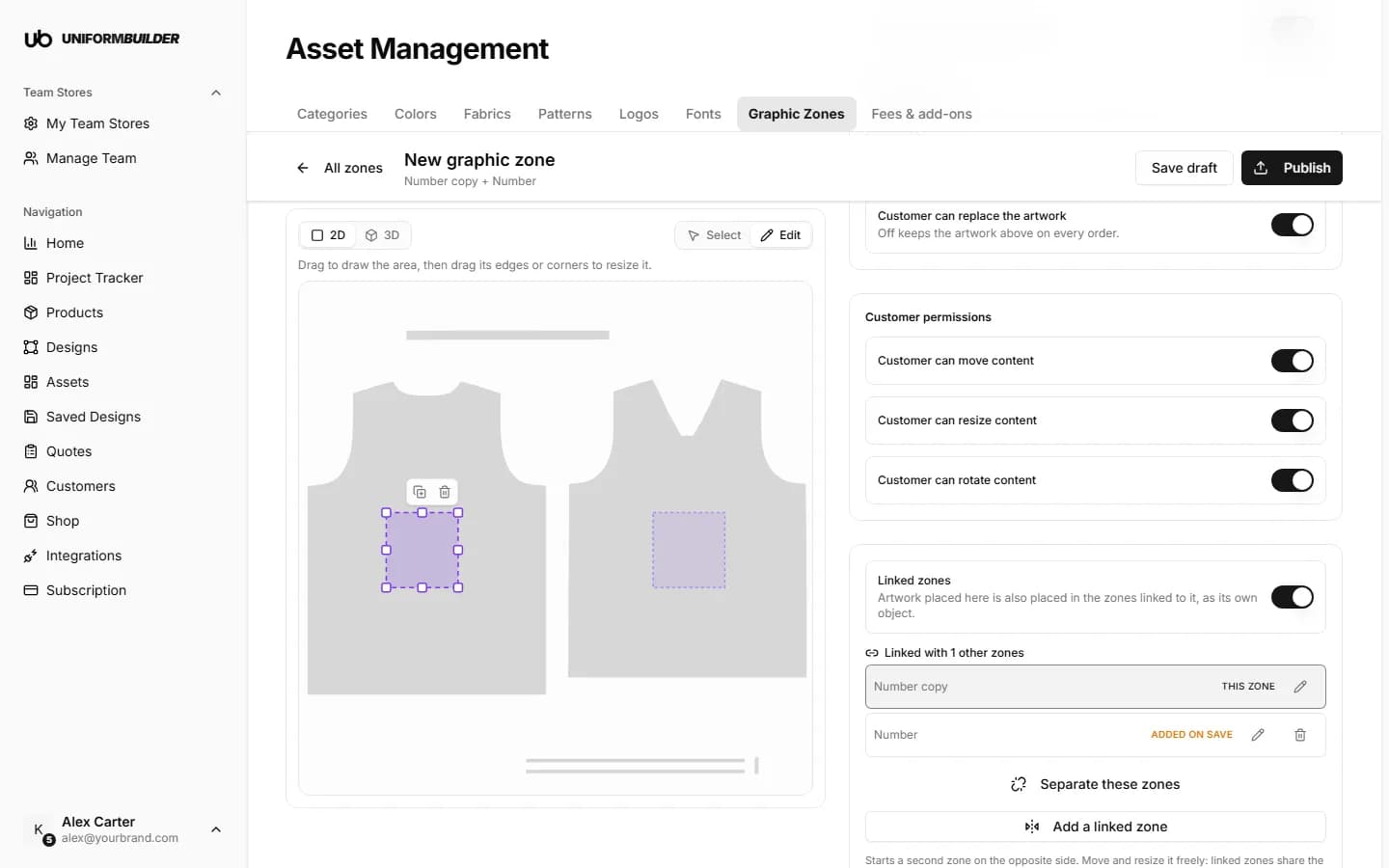
A front number and its linked partner at the centre of the back. - 2
Rename each zone from the Linked zones list so customers can tell them apart.
Linked zones share what they accept and their prefilled content. Zones marked Added on save are created when you save.
- 3
Save or publish.
Separate these zones turns them back into independent zones. A fixed position cannot be linked.
What your customers see
- 1
The customer types their text in the designer and clicks Place text on model.
If the product has zones that accept text, they are asked to Choose a print position. Each card shows the zone's label and its captured 3D preview.
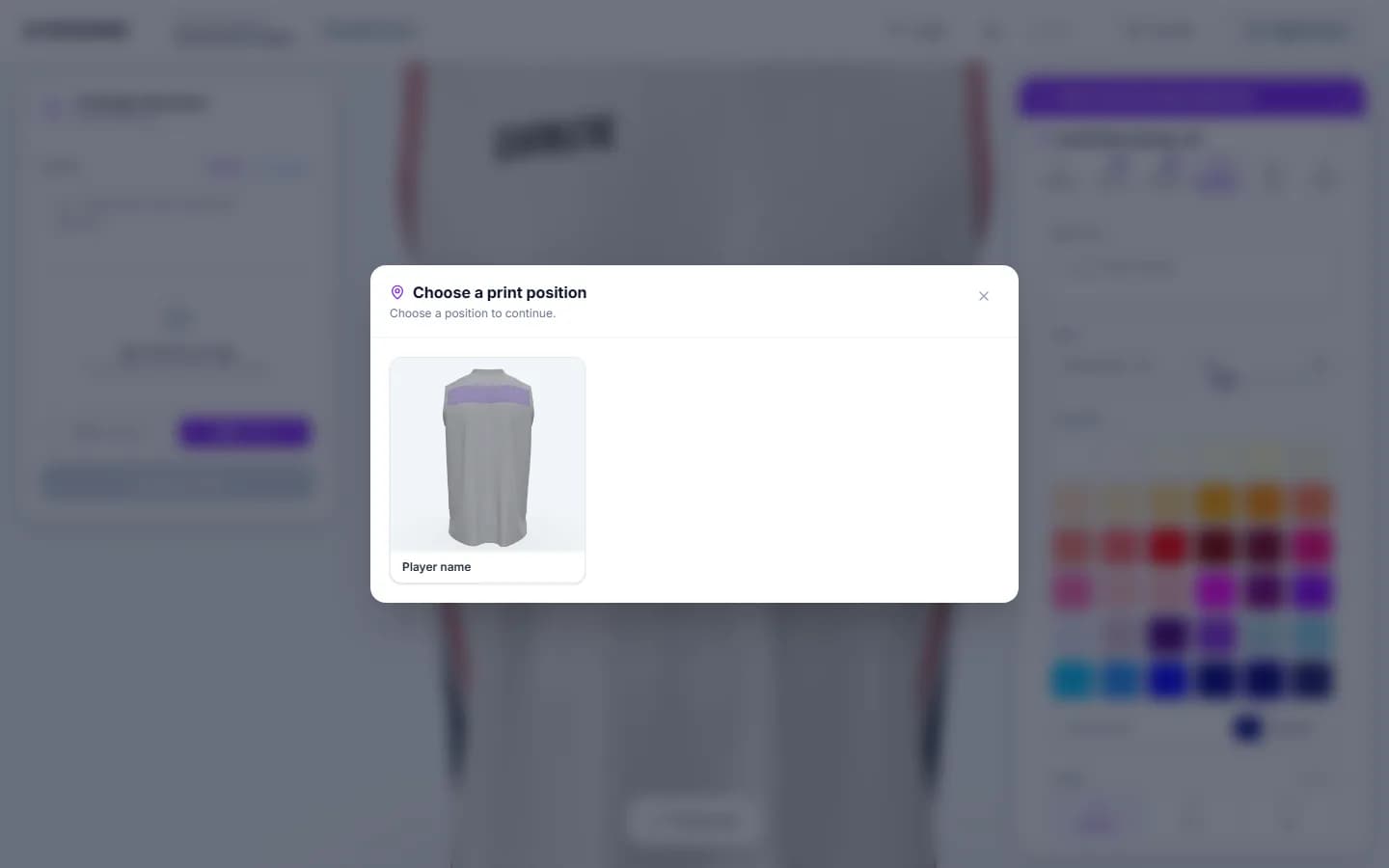
The customer picks the zone. - 2
The text lands in the zone with your rules applied.
Here "Martinez-Lopez Jr" became MARTINEZ-LOP: uppercase, and cut to the 12 characters the zone allows. While they edit it, the customer sees the counter and a note for each setting you locked.
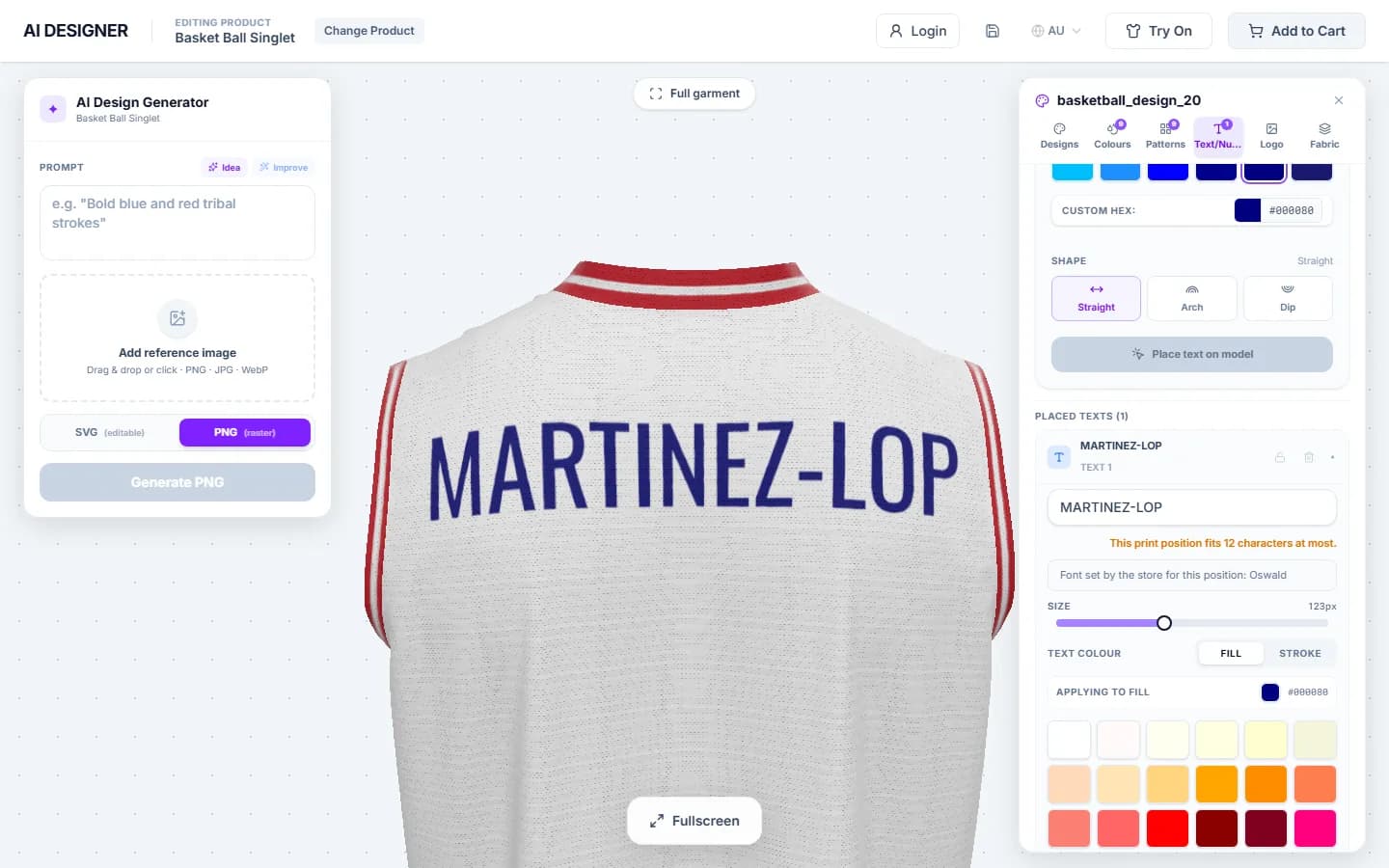
The text in the zone, with the counter and the locked font.
Managing your zones
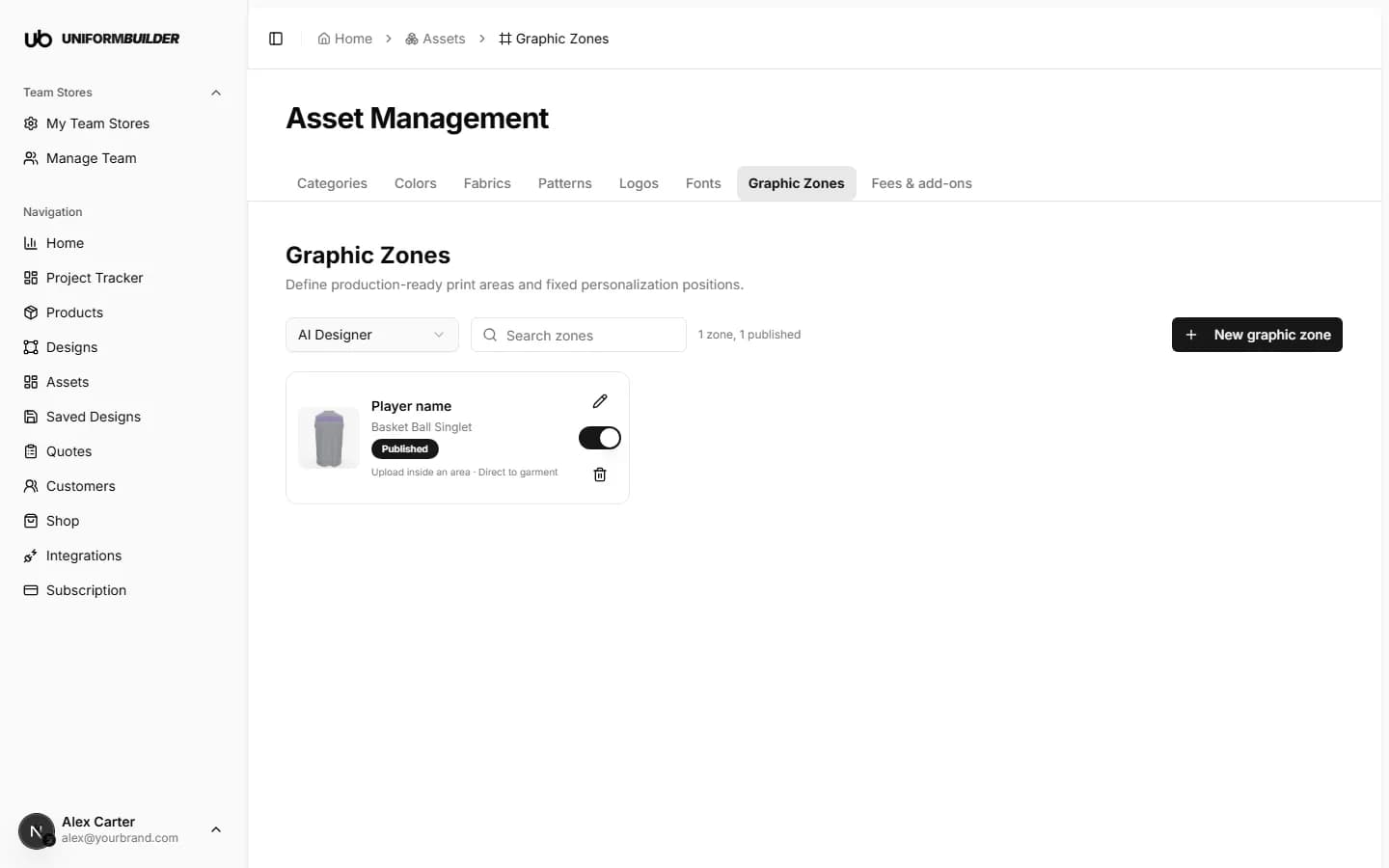
- Search zones finds a zone by its label. The count beside it shows how many are published.
- The pencil opens a zone to edit.
- The switch on each zone publishes or unpublishes it: an unpublished zone leaves the storefront but keeps all its settings.
- Remove deletes it. You are asked to confirm first.
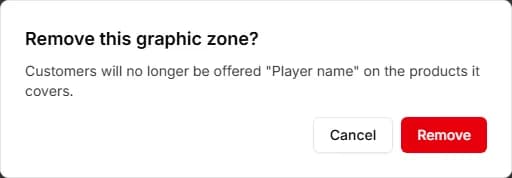
Zones already used in orders
If quotes or saved designs refer to the zone, the dialog says how many. They keep their own copy and still open, but Unpublish instead is usually the better choice: it takes the zone out of the storefront and keeps the record.
To charge for each decorated position, add a fee charged per graphic zone or decoration method in Fees & add-ons.
Why can I not draw anything?
Pick a product first: the layout loads with it. If the product has no UV layout yet, the editor says so, and the layout has to be generated on the product page before zones can be drawn.
Can customers still design outside the zones?
Zones control where text and artwork go when the customer chooses a print position. Colours, patterns and the design itself are not affected.
Does a category zone fit every product in the category?
It uses the same position on each layout, so it fits products whose pieces are laid out alike. Check each product in 3D, and give a product its own zone where the layout differs.