
Patterns
Open /dashboard/assets/patternsA pattern is repeating artwork with no top and no bottom: camo, stripes, dots, a halftone fade. A customer applies one to a panel of the garment and then recolours it. Because it repeats, one pattern works on every size and every garment shape.
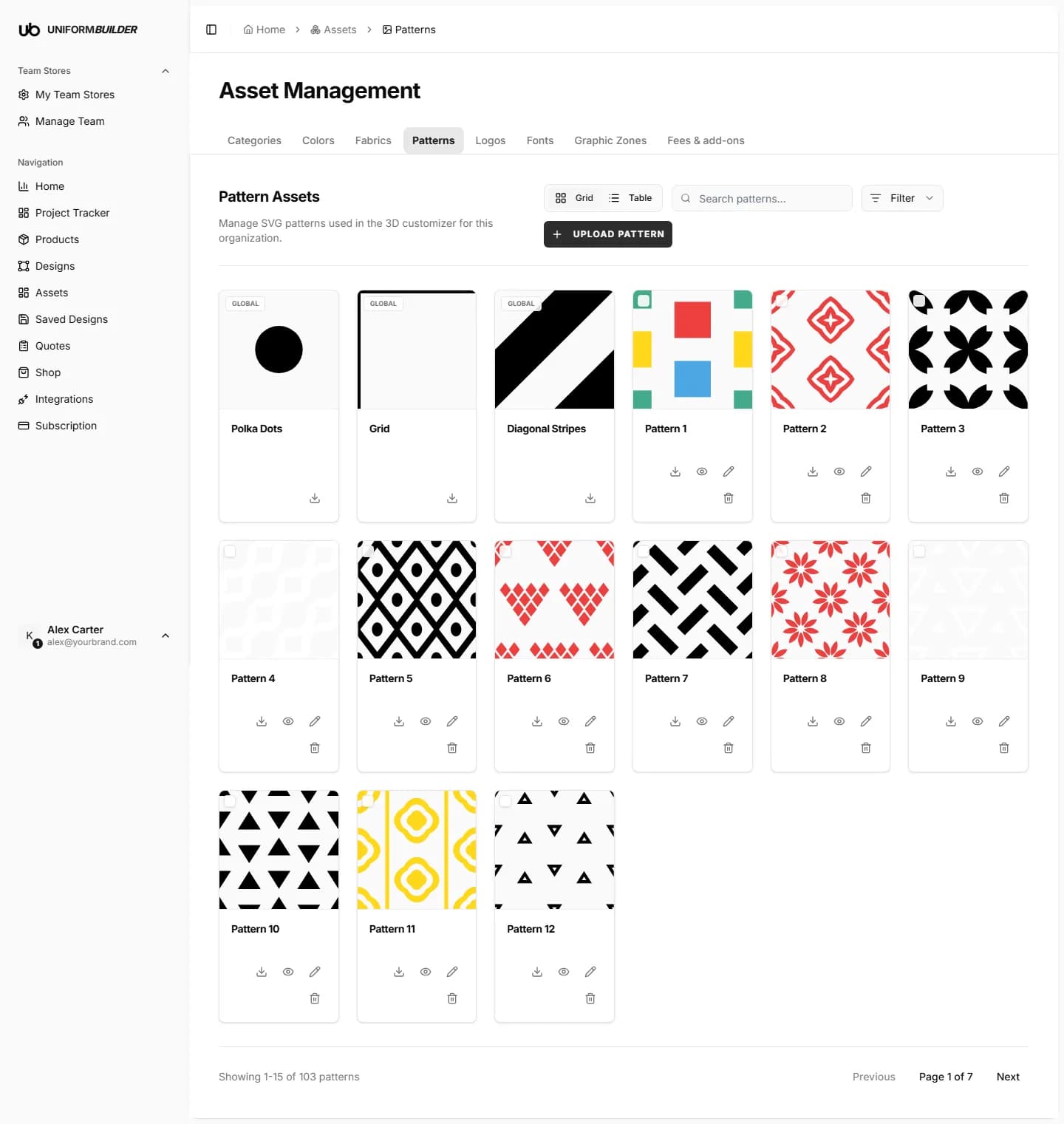
Uploading a pattern, step by step
- 1
Click Upload Pattern in the top right of the Patterns tab.
- 2
Type a pattern name. This field is required.
Customers read this in the designer, so "Camo Grid" beats "pattern-final-v2". Keep it short enough to fit on a card.
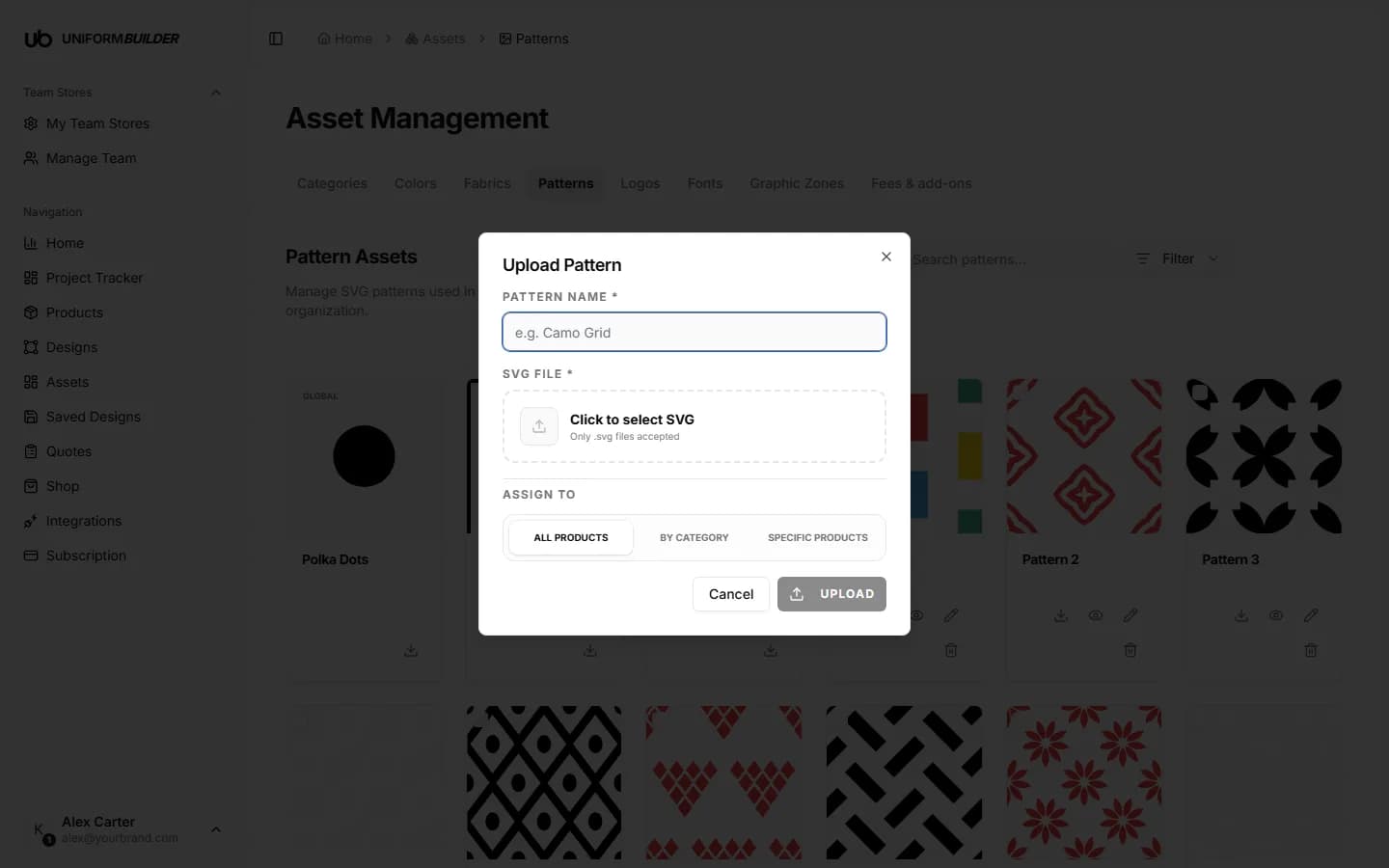
The Upload Pattern dialog. - 3
Click Click to select SVG and choose your file.
Only
.svgfiles are accepted. This is deliberate: a vector pattern stays sharp at any print size and can be recoloured, which a JPEG or PNG cannot. - 4
Choose Assign to: All products, By category, or Specific products.
See the Assign to rule.
- 5
Click Upload.
Preparing a good pattern file
- Make it tile. The right edge has to line up with the left, and the top with the bottom. Any design tool can preview this: duplicate the tile in a grid and look for seams.
- Use flat shapes, not effects. Blurs, drop shadows and gradients meshes often rasterise on export, which defeats the point of using SVG.
- Keep the colours simple. Two or three flat colours recolour cleanly. Fifty shades do not.
- Watch the file size. A camo pattern traced from a photograph can contain tens of thousands of paths and will make the designer sluggish. Simplify the paths before exporting.
An SVG that contains a photo is not a vector
Some tools export an SVG that simply wraps a bitmap image. It uploads fine, looks fine in the thumbnail, and then prints badly and cannot be recoloured. Export as paths.
Editing and removing
Each pattern card has an eye to preview it larger, a pencil to rename it or change its scope, and a bin to delete it. Grid and Table switch views, and the search box filters by name.
Note
Deleting a pattern removes it from the designer for new customers. Anything already saved keeps the artwork it was saved with.
The pattern shows a visible grid on the garment.
The tile does not repeat seamlessly. Fix the edges in your design tool and re-upload rather than trying to hide it by scaling.
Can a customer change the pattern colours?
Yes, within the colours you allow for that product. See Colours and the product colour palette setting in Products.
Can I upload a PNG pattern?
No. The upload only accepts SVG. If all you have is a PNG, trace it to vector first, or publish it as a design instead if it is positioned artwork rather than a repeat.