
Connecting WooCommerce
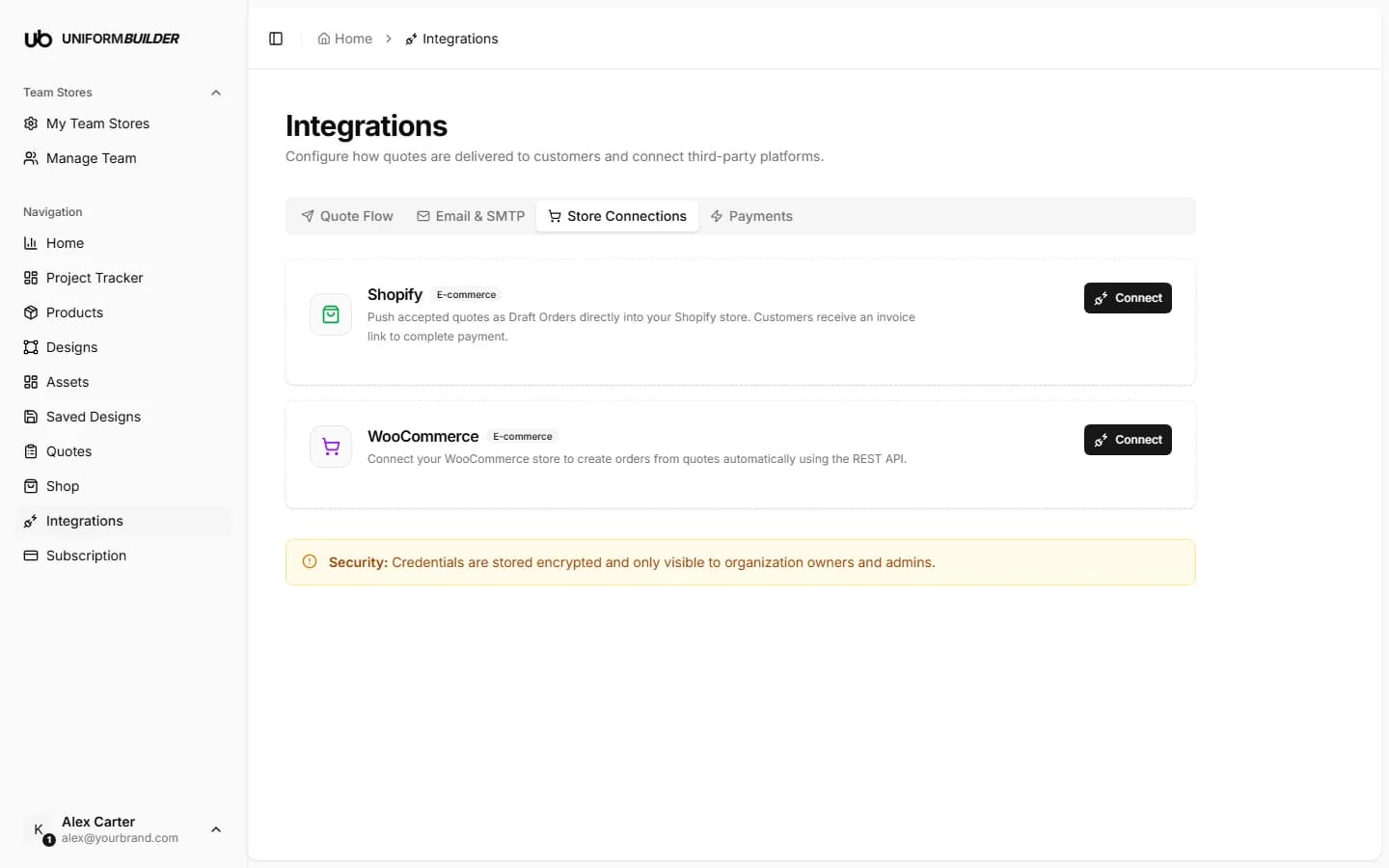
Open /dashboard/integrationsWooCommerce is the shop plugin for WordPress. Connecting it means an accepted quote becomes an order in your existing shop, using the products, tax rules and shipping you already have set up.
What you need before you start
A WordPress site with WooCommerce installed, an administrator login for it, and a site served over https://. WooCommerce refuses to issue working API keys over plain http.
Step 1: create the REST API keys
WooCommerce identifies outside software with a pair of keys rather than a login. You create the pair inside your own WordPress admin.
- 1
Sign in to your WordPress admin.
- 2
Go to WooCommerce → Settings → Advanced → REST API.
If you do not see Advanced, you are probably on an older WooCommerce; look for WooCommerce → Settings → API instead.
- 3
Click Add key.
- 4
Fill in the form.
Description: something you will recognise, for example "UniformBuilder". User: an administrator account. Permissions: Read/Write, because orders have to be created, not just read.
- 5
Click Generate API key.
- 6
Copy the Consumer key (starts with
ck_) and the Consumer secret (starts withcs_).They are shown once, on this screen only. If you navigate away without copying them, delete the key and generate a new pair.
Read/Write, not Read
A read-only key connects successfully and then fails the moment an order has to be created. If orders are not appearing, this is the first thing to check.
Step 2: paste them here
| Field | What it does |
|---|---|
| Store URLrequired | The base URL of your shop, for example https://mystore.com. Include https://, and no trailing path. |
| Consumer keyrequired | The ck_... value from WooCommerce. |
| Consumer secretrequired | The cs_... value. Stored encrypted and never shown to members or producers. |
- 1
Open the WooCommerce card on the Store Connections tab and enter the three values.
- 2
Save, then run the connection test.
- 3
Open the Quote Flow tab and set delivery to Push to store.
Connecting alone changes nothing. See Integrations overview.
- 4
Submit one test quote from your storefront and confirm the order appears in WooCommerce.
When it does not work
- 401 or "consumer key is invalid": the keys were copied with a stray space, or the site redirects
https://mystore.comto a different domain. Use the exact URL the shop actually serves on. - Works in a browser but not here: a security plugin or a firewall is blocking REST API requests. Allow
/wp-json/wc/through it. - Orders arrive without the right product: link your products to catalog items using the Store integration field on each product. See Products.
- Nothing arrives at all: check quote flow is set to push to store, not email confirmation.
Can I use WooCommerce and Stripe together?
Not here. The three providers are mutually exclusive. If your shop is WooCommerce, take payment through the WooCommerce checkout, where you have probably already configured a payment gateway.
How do I revoke access?
Delete the key in WooCommerce → Settings → Advanced → REST API. That cuts access off immediately, whatever is stored here.
Does it work on a staging site?
Yes, and it is a good idea. Generate a separate key pair on staging, test the whole flow, then repeat on production with its own keys.